
Vouchers
Creating, restricting and evaluating vouchers and discount codes. These texts sit right next to the fields inside Kursimple – here they are to read through.
Vouchers
Vouchers
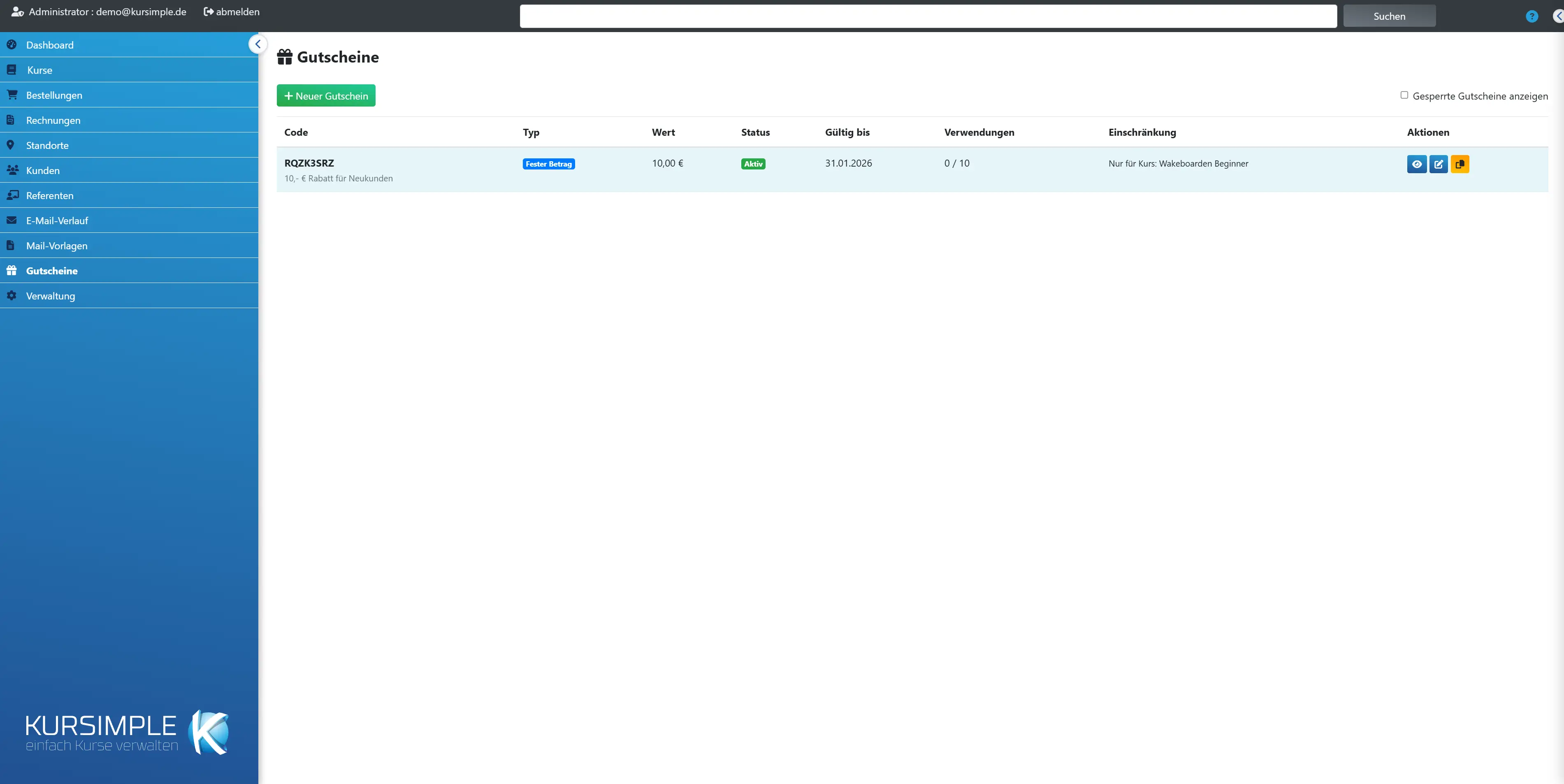
Discount codes for bookings: a fixed amount or a percentage, with validity period, usage limit and optionally restricted to certain courses. Customers enter the code in the booking portal; in administration you choose the voucher per item in the order.
How to set up a campaign: “New voucher” → code (e.g. SPRING10), type and value → validity and limits → optionally restriction to course, date, category or course type → save → communicate the code to customers.
Every redemption is counted; you see the statistics per voucher via the eye. Instead of deleting you can block vouchers – ones already used are automatically only blocked when deleted, so that old orders stay traceable.
Blocked vouchers are hidden by default (tick at the top). A gift icon in the course list shows that vouchers exist for a course.
New voucher
Opens the form for a new discount code. Code, type and value are required; everything else is optional.
The code must be unique; upper/lower case does not matter when redeeming. Avoid easily confused characters such as 0/O and 1/l.
Show blocked vouchers
Shows blocked (deactivated) vouchers – grayed out. They can no longer be redeemed but are kept for the history.
To reactivate a blocked voucher, open it via “Edit” and set the status to “Active”.
Code
The code customers enter. Below it is the internal description. The eye in the actions shows details and all redemptions.
Customers type the code in the portal’s shopping cart; in administration you select it per item in the order form.
Type
Fixed amount (e.g. €10) or Percentage (e.g. 15%). With percentage the discount refers to the item price, with a fixed amount at most the item price is refunded.
Fixed amounts suit gift vouchers, percentages suit campaigns.
Value
The amount in euros or the percentage – depending on the type.
Change via “Edit”; discounts already granted do not change as a result.
Status
Active = redeemable. Blocked/Deactivated = switched off by you. Used = usage limit reached. Expired = “Valid until” has passed. Only active vouchers are accepted in the portal.
“Used” and “Expired” are set automatically by the system. If you want to extend a campaign, change “Valid until” or the limit and set the status to “Active”.
Valid until
Last day on which the code can be redeemed. Red if the date has passed. “Unlimited” = no end date.
The end of validity refers to redemption, not to the course date.
Usages
How often the code has already been redeemed and how often at most (e.g. 12 / 50). Once the maximum is reached, the code is rejected.
You see the individual redemptions with order and customer in the details (eye).
Restriction
What the voucher applies to: a course, a date, a category or a course type. Empty = applies to all bookings.
For an order with several items, the discount is only applied to matching items.
Actions
Eye = details and redemptions. Pencil = edit. Copy = create a new voucher with the same rules and an automatically generated new code.
Copying is handy for individual vouchers of the same value: the new code is shown in the success message and can be edited in the detail view. You find Delete in the edit form.
Edit voucher
Edit voucher
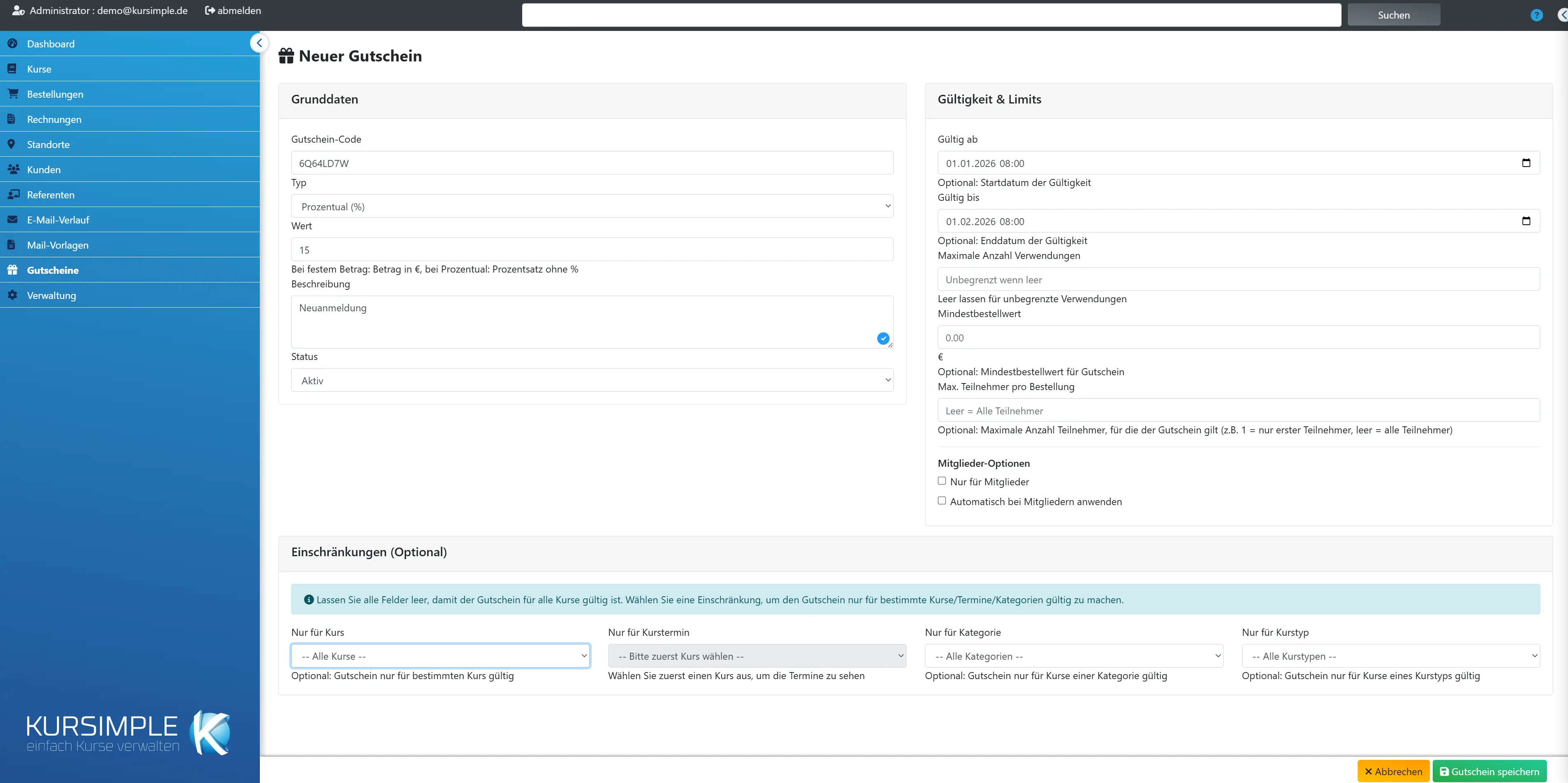
All rules of a voucher in three blocks: basic data (code, type, value, status), validity & limits (period, number, minimum order value, members) and restrictions (course, date, category, course type). Changes apply immediately to future redemptions.
Discounts already granted in existing orders do not change. At the very bottom: “Delete” (for vouchers already used, they are only blocked), “cancel” and “Save voucher”.
Basic data
Code, type, value, internal description and status – the minimum for a working voucher.
Code, type and value are required.
Voucher code
Required field, must be unique. The text customers enter – short, easy to read, without easily confused characters: “SUMMER2027” rather than “5umm3r-27”. Saved automatically in capital letters.
For gift vouchers to individual people, better use “Copy” in the list – it automatically generates unique codes.
Type
Fixed amount = discount in euros (at most the item price). Percentage = discount in percent of the item price.
The type determines how the “Value” field is read.
Value
For a fixed amount the amount in euros (e.g. 50), for Percentage the percentage without the % sign (e.g. 20).
Decimal places with a point or comma are allowed.
Description
Internal note on the purpose – e.g. “Early-bird campaign spring 2027, flyer”. Customers do not see it; it appears in the list below the code.
Helps colleagues understand why the voucher exists.
Status
Active = redeemable. Deactivated = blocked. Used/Expired is set by the system when the limit or end date is reached – to reactivate, set it back to “Active” and adjust the limit or date.
Deactivating is the clean way to end a campaign early.
Validity & limits
When and how often the voucher applies: period, maximum usages, minimum order value, participant limit and the member options. All optional – empty means no restriction.
For a time-limited campaign “Valid until” is enough; for individual vouchers “Maximum number of usages” = 1.
Valid from
Earliest date from which the code can be redeemed. Empty = immediately.
Handy for preparing a campaign that only starts on the first of the month.
Valid until
Last date on which the code can be redeemed. Empty = unlimited. After that the list shows “Expired”.
Refers to the time of booking, not to the course date.
Maximum number of usages
How often the code may be redeemed in total (across all customers). Empty = unlimited. For a personal gift voucher enter “1”.
Once the limit is reached, the status changes to “Used” and the code is rejected.
Minimum order value
Order total in euros from which the voucher applies (gross, before discount). Empty = no minimum.
E.g. €100, so that a €10 voucher is not applied to a €15 booking.
Max. participants per order
For how many participants per order the discount applies. “1” = only the first participant is discounted, even if three are booked. Empty = all participants.
Useful for “bring a friend for free” campaigns or to limit family bookings.
Members only
Tick so that only members can redeem the code. With the Memberships module, a running membership of the orderer or of a booked participant counts; otherwise an entry in the “Additional info” field plus the tick “Allow member vouchers” in the customer record.
Other customers get the message “This voucher is only valid for members.” when redeeming – in the booking portal, in the shopping cart, via the REST interface and in administration. Anyone not logged in to the portal is asked to log in.
With the Memberships module: a member is someone who has a running membership with you today (like the orange badge with a star). If a mother books for her child who is a member, the voucher applies as well. “Additional info” and “Allow member vouchers” then play no role.
Apply automatically for members
Members get the discount without entering a code: for logged-in members the voucher is already in the voucher field at checkout, and without another code it is applied when ordering. Only one such voucher is possible per provider.
Typical use: a permanent member discount of e.g. 10%. If an automatic member voucher already exists, saving is rejected with a message. The voucher only applies to members – even without the tick “Members only”. If someone enters another code, that one applies.
Only for members of
Only with the Memberships module: choose the memberships whose members may use the voucher. Without a selection, any running membership counts.
The selection takes effect with “Members only” and with the automatic member voucher. Ended and future memberships do not count – today’s date is what matters.
Restrictions (optional)
Make the voucher apply only to a specific course, a single date, a category or a course type. Without an entry it applies everywhere.
Only items that match the restriction are discounted. Choose a course to be offered the dates of that course below it.
Only for course
The voucher only applies to bookings of this course (all dates). “-- All courses --” = no restriction.
After the selection you can additionally choose a single date below.
Only for course date
Even more specific: only for this one date of the course chosen above. Selectable only after a course has been chosen.
E.g. for a single date that is poorly booked.
Only for category
Applies to all courses of this category (topic), e.g. all language courses.
Categories are assigned in the course data.
Only for course type
Applies to all courses of this type (format), e.g. workshops only.
Course types are assigned in the course data.
Save voucher
Creates the voucher or saves the changes (“Voucher successfully created/updated”). Then give the code to customers.
A code that is already taken or a second automatic member voucher is rejected with a message.
cancel
Back to the voucher list without saving.
Entries are lost.
Delete
Removes the voucher after confirmation. If it has already been redeemed, it is only blocked instead – old orders keep their discount and stay traceable.
To end a running campaign, the status “Deactivated” is also enough.
Voucher details
Voucher details
Everything about a voucher: rules, validity, statistics (how often redeemed, how much discount granted) and the list of all redemptions with order and customer. Change via “Edit”.
With the usage history you answer questions like “Has Ms. Miller already used the code?” or “What did the campaign cost us?”.
Details
Code, type, value, status and internal description; for blocked vouchers the time of blocking.
Status colors: green active, gray used, yellow expired, dark blocked.
Validity
Period (“Valid from/until”) and minimum order value, as maintained in the form.
Empty = no restriction.
Statistics
How often redeemed (and maximum), participant limit, member options, total and average discount and the remaining redemptions.
The total discount shows what the campaign has cost so far.
Restrictions
Course, date, category or course type the voucher is restricted to. “No restrictions” = applies to all bookings.
Change via “Edit”.
Usage history
Every redemption with date, order, customer and discount granted. Clicking the order opens it.
Appears only once the voucher has been redeemed at least once.
Back to overview
Back to the voucher list. Nothing was changed here.
All information is display only.
Edit
Opens the form to change rules, validity or status.
Changes apply to future redemptions.
Blocked on
When the voucher was blocked – either by hand (status “Deactivated”) or when deleting an already used voucher.
Visible only for blocked vouchers.
Usages
Redemptions so far and, if set, the maximum. When the maximum is reached, the code is rejected.
Change the limit via “Edit”.
Total discount
The sum of all discounts granted across all redemptions – the cost of the campaign.
Gross, as shown on the invoices.
Avg. discount
Average discount granted per redemption – to assess how the campaign performs.
For percentage vouchers it depends on the item price.
Remaining
How often the code can still be redeemed. If the row is missing, there is no limit.
At 0 the status changes to “Used”.
Date
When the voucher was redeemed (order date).
Chronological.
Order
The order in which the code was used. Clicking opens it.
There you see the discounted item.
Customer
The orderer who redeemed the code. Clicking opens the customer record.
This is how you check whether someone used an individual voucher more than once.
Discount
The amount granted in euros – for percentage vouchers the calculated value.
Shown exactly like this on the invoice.
Actions
Opens the associated invoice, if already created.
There the discount appears as its own line or deduction.
Rather see it than read about it?
In 30 minutes we will show you Kursimple with your own course programme. Or set up your own test system in 30 seconds – both free and without obligation.
Questions? +49 5931 990 99 10 · Mon–Thu 8:30–17:30, Fri 8:00–14:00 (CET)