
Users
Viewing and editing the logins of your administration. These texts sit right next to the fields inside Kursimple – here they are to read through.
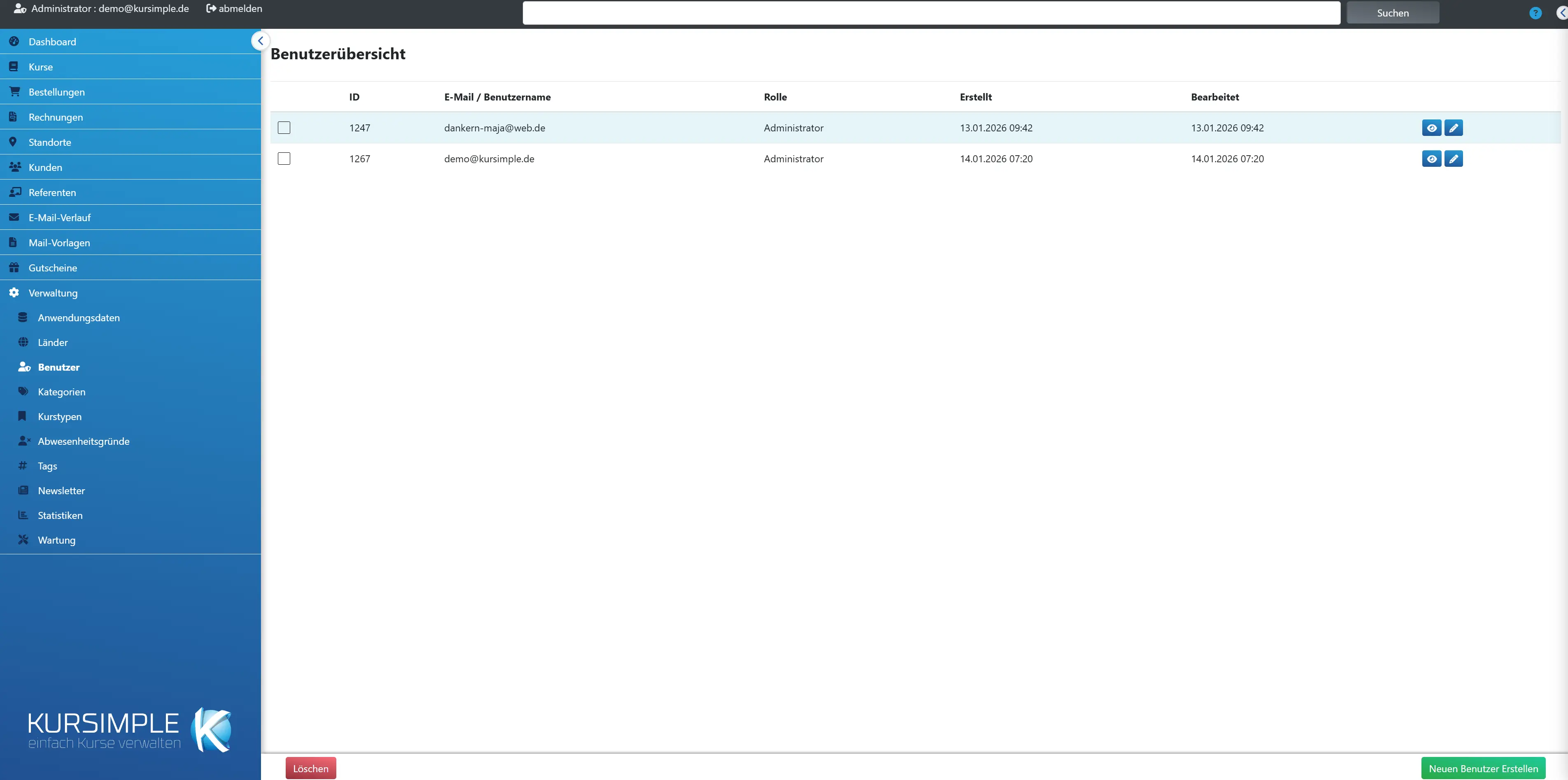
User Overview
User Overview
The logins of your staff for the administration with their role (administrator, management, instructor, provider, user). Here you create new accounts, change roles and passwords and remove accounts.
Login runs via the central login (Keycloak); the username is the email address. The role determines what someone may see and change. A user can be assigned to several tenants – a badge then shows the number.
Important: customers and instructors do not get their logins here but automatically via the customer or instructor record. This list is for your team.
Selection
Checkbox to mark users for “Delete”. For users with several tenants, only the assignment to your tenant is removed; the login remains for the others.
Your own user cannot be deleted.
ID
Internal number of the user.
Only relevant internally.
Email / username
The login name – an email address to which activation and password emails are also sent. Must be unique.
A badge next to it shows if the user is assigned to several tenants.
Role
What the user may do: administrator (everything incl. administration), management (day-to-day business without administration settings), instructor (own courses only), provider (own courses, locations, instructors only), user (customer rights).
- Administrator – all functions of the tenant, including application data and users.
- Management (manager) – courses, orders, invoices, customers, email; no administration settings.
- Instructor – own courses, participant lists, attendance, calendar.
- Provider – courses, locations and instructors of their own provider (only when provider management is switched on).
- User – customer rights (profile, own orders).
Give the smallest role that is sufficient for the task.
Created
When the account was created.
For orientation.
Edited
When the role, password or login name was last changed.
For orientation.
Actions
Eye = view user. Pencil = edit (login name, password, role).
You set a password anew via the pencil; alternatively the user uses “Forgot password” on the login page.
Delete
Removes the marked accounts after confirmation. If a user belongs only to your tenant, they are deleted completely; if they also belong to other tenants, only your assignment is removed.
Users with linked data (e.g. as a provider) cannot be deleted; a message lists them. Your own account is protected.
Create New User
Creates a login for a team member: email as login name, a starting password and the role. The user is created at the central login at the same time.
Tell the new user the login name and starting password; they can change it after the first login. If the email already exists (e.g. as a customer), an error message appears.
Edit User
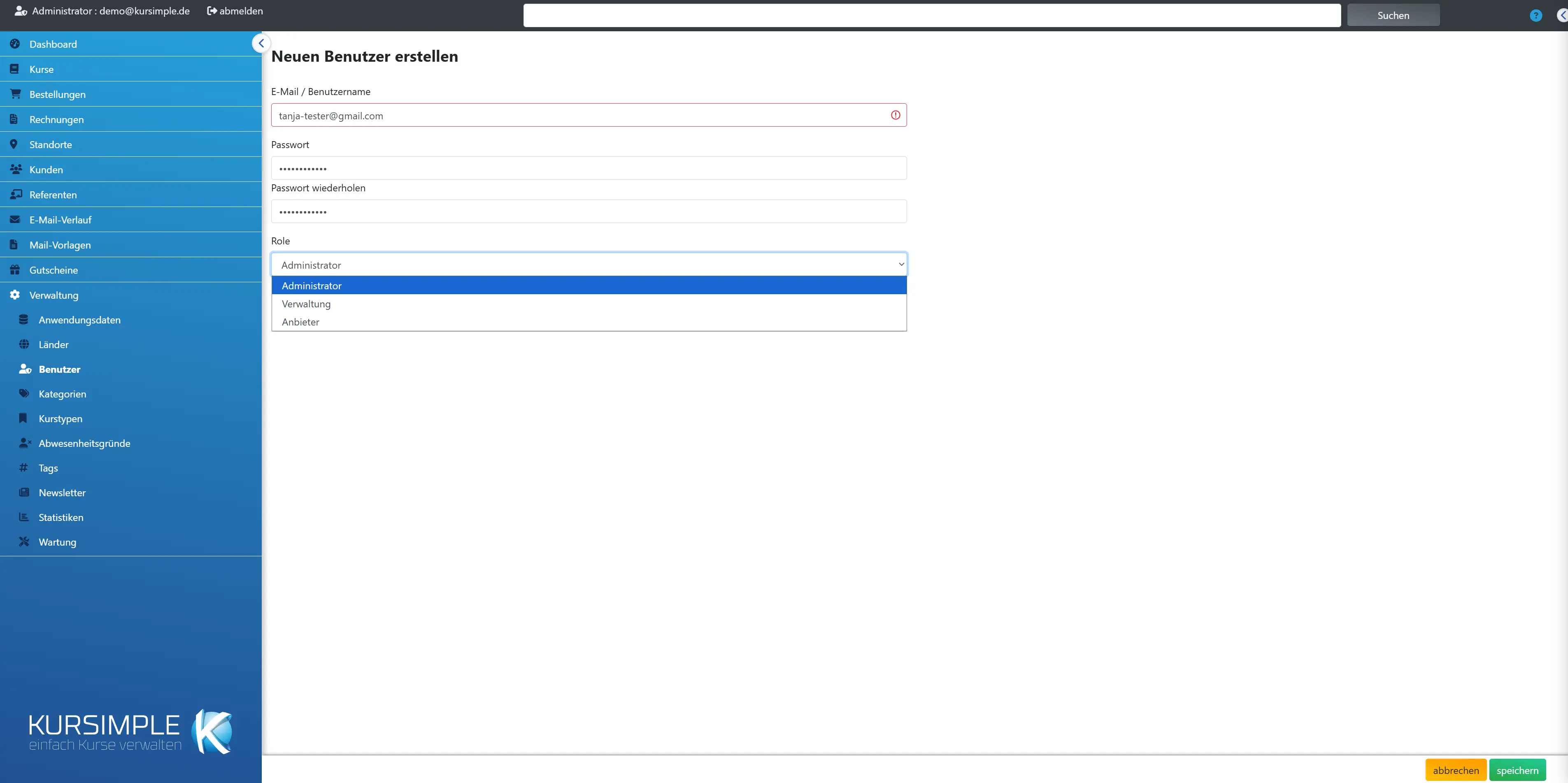
Edit User
Login name and role of an account. The user sets a new password themselves – via “Send password-setting email”.
Changes to the login name are transferred to the central login – the user then logs in with the new address.
Email / username
Required field: a valid email address that is not yet taken. It is the login name; activation and password emails go to it.
Use personal addresses, not shared mailboxes – otherwise several people share one password.
Password
Starting password with at least eight characters, only when creating. It counts as temporary at the central login: at the first login the user sets their own.
When editing there is no password field – there you send the user an email to set the password.
Repeat password
The same password once more – protection against typos. If the two do not match, saving is rejected.
Only when creating.
Send password-setting email
Sends the user an email with a link through which they set a new password themselves. It applies at the central login; you never learn it.
A new email invalidates the link of the previous one. The link is valid until the user has used it.
save
Creates the user or applies changes (“User created/saved”). When creating, the account is first created at the central login – if that fails, an error message appears and nothing is saved.
Duplicate email addresses are rejected with a message.
cancel
Back to the user overview without saving.
Input is lost.
User
User
The master data of a login: login name, creation and modification date. To change the password or role, click “edit”.
You see the role in the user overview.
ID
Internal number of the user.
Only relevant internally.
Email / username
The user’s login name.
Can be changed via “edit”.
created
When the account was created.
For orientation.
last edited
When the account was last changed.
For orientation.
delete
Removes the account after confirmation – completely if it belongs only to your tenant, otherwise only the assignment to your tenant.
Your own account cannot be deleted.
back
Back to the user overview. Nothing was changed here.
Display only.
edit
Opens the form for login name, password and role.
Changes take effect immediately.
Rather see it than read about it?
In 30 minutes we will show you Kursimple with your own course programme. Or set up your own test system in 30 seconds – both free and without obligation.
Questions? +49 5931 990 99 10 · Mon–Thu 8:30–17:30, Fri 8:00–14:00 (CET)