
Statistics, templates & search
Revenue and participant statistics, your own statistics templates and the global search. These texts sit right next to the fields inside Kursimple – here they are to read through.
Statistics
Statistics
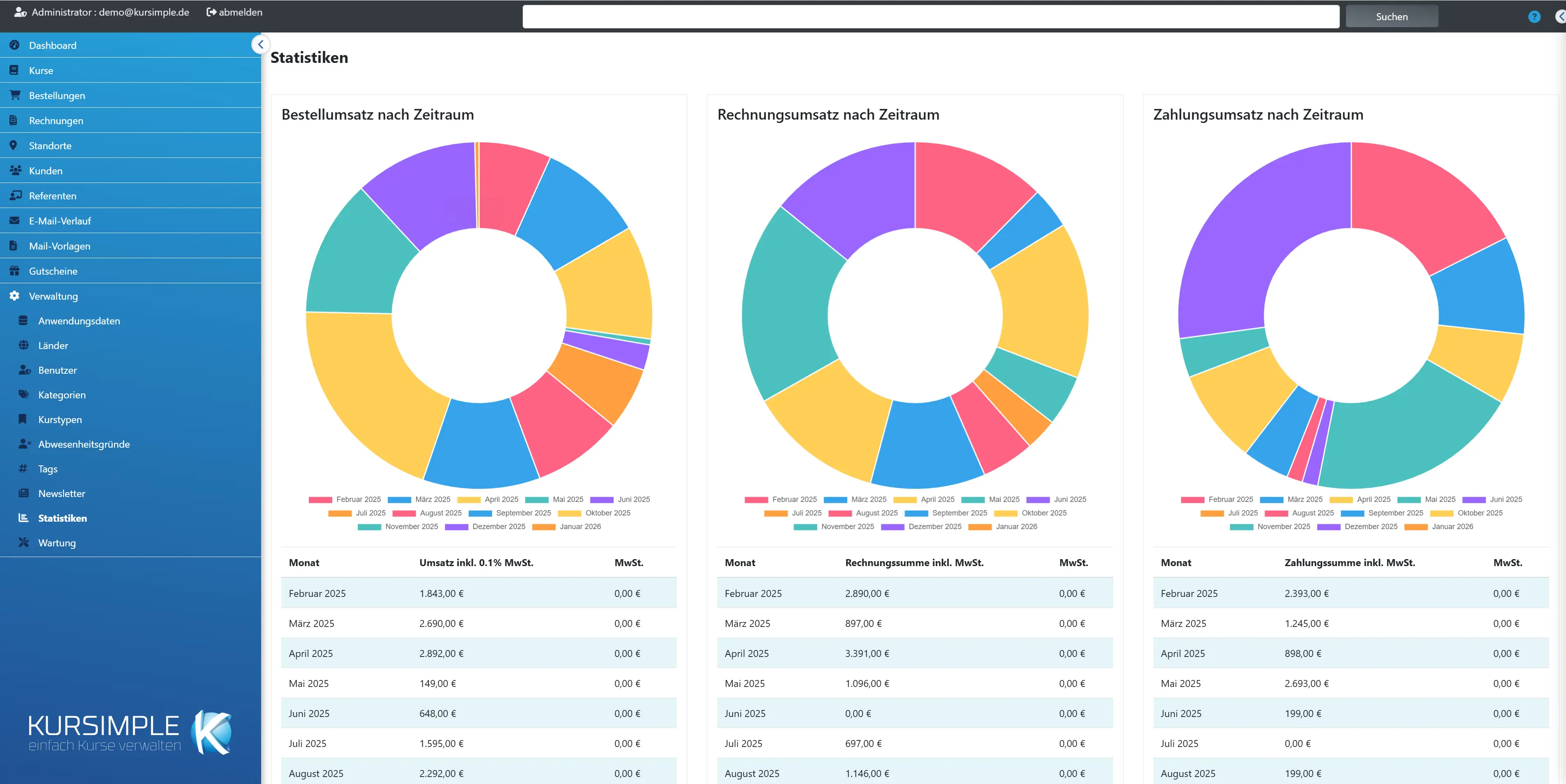
Your figures at a glance: revenue per month (ordered, invoiced, paid) as well as where your participants come from and how old they are. At the bottom you download the tables as CSV or switch to the course statistics of a year.
The three revenue tables deliberately differ: “Order revenue” = what customers have ordered (by order date). “Invoice revenue” = what you have invoiced (by invoice date, credit notes deducted). “Payment revenue” = what was actually recorded as payment received (by payment date). Large differences between invoice and payment revenue point to outstanding receivables.
All amounts are gross; the VAT included is shown next to them. Cancelled orders are not counted.
Order revenue by period
Sum of orders per month by order date – shows when your customers book (seasonal pattern). Without cancelled orders, after deduction of vouchers.
The tax rate in the column heading is the average of the rates used; the “VAT” column shows the tax portion included.
Invoice revenue by period
Sum of closed invoices per month by invoice date. Credit notes reduce the sum. This is the figure that should match your bookkeeping.
Drafts are not counted – close invoices promptly so that the month is complete.
Payment revenue by period
Sum of recorded payments received per month by payment date – when money actually came in.
The figure is only as good as your payment recording: record payments in the invoices (or by clicking “open” in the invoice list), otherwise the month stays too low.
Course participants by postcode
Which postcode areas your participants come from – a basis for advertising, flyer distribution and choosing new locations.
Participant places are counted by the customer's postcode. “N/A” = customers without a postcode.
Course participants by age
Age distribution of your participants – helps with programme planning (children's, adult and senior offerings).
Only participants with a recorded date of birth are counted; “N/A” stands for the rest. Whether dates of birth are recorded is determined by the variable PARTICIPANTS_DATEOFBIRTH.
Export as CSV
Downloads the revenue tables as a CSV file – to open in Excel or to pass on to bookkeeping.
The columns correspond to the tables on this page.
Custom statistics (templates)
Opens the statistics templates: there you put together statistics with your own columns, period and selection and download them as CSV for Excel.
Admins create the templates; administration can download them.
Course statistics
Opens the course statistics of a year: occupancy, participants and revenue per course. The year buttons choose the year; “old” shows all past years.
This is how you see which courses are running well and which are not – a basis for the next programme.
Month
The calendar month of the evaluation, in chronological order.
A month without a row had no revenue.
Revenue incl. VAT
Order value of the month, gross – after vouchers, without cancelled orders.
The order date is decisive.
VAT
The VAT portion included in the sum, calculated from the tax rates of the items.
For tax-exempt educational services the portion is correspondingly small.
Invoice total incl. VAT
Sum of the invoices closed in the month, gross; credit notes are deducted.
The invoice date is decisive.
Payment total incl. VAT
Sum of the payments received that were recorded in the month.
The payment date from the invoice is decisive.
Postcode & city
Postcode and city of the customers, grouped by postcode.
“N/A” = without postcode.
Number of course participants
How many participant places fall into this group – across all courses.
A person with three courses is counted three times.
Age
Age of the participants in years at the time of the evaluation.
Only with a recorded date of birth.
Search results
Search results
The hits of the search from the header – across courses, sessions, customers, orders, speakers and locations. Each hit names its type; a click opens the record.
Titles, names, numbers and email addresses are searched. If you find nothing, try a shorter term or use the filters of the respective list.
Statistics templates
Statistics templates
Here you put together your own statistics: which columns, which period, which courses or locations. You can download each template again as CSV at any time – Excel opens it with a double-click with separated columns.
Templates belong to your provider and are visible only here. Admins create and change them; staff with the role “Administration” can export them.
The CSV is built for an Excel set to German (semicolon, decimal comma). In an Excel set to English everything ends up in one column – “Data → From Text/CSV” helps there.
Name
The name of the template, with its description below. Each name occurs only once for you.
You change the name in the editor. The description helps others understand what the template is meant for.
A row is …
What a row of the statistics is: a course session (“Session”), an individual session per speaker, a participant of a booking (“Participation”) or an order. This determines which fields are available. “Evaluation” means: the rows are summarised and counted.
You set the row type when creating; you can change it in the editor, and unsuitable columns then drop out.
File name
Pattern for the name of the downloaded file. Placeholders such as {jahr} are replaced on export.
The editor explains the placeholders at the field “File name”. “.csv” is always added automatically.
Actions
“Export” opens the template for downloading. Admins can also edit, copy or delete it.
Copying is worthwhile if you need a similar statistic – you then edit the copy straight away.
Examples to adopt
Ready-made templates as a starting point. “adopt” opens them in the editor; only with “save” does it become your own template, which you can change as you like.
Examples do not change when you edit your template – you can adopt each example as often as you like.
With the memberships module, examples for members are added: member list, members per membership, joins and leavers per month, age structure, and courses with members and non-members.
Courses with hours
List per course session with course number, title, start and end date, number of individual sessions, hours per session and in total, and the instructors – e.g. for proof of hours or funding applications.
One row per course session whose start falls in the period (default: current year). This is what the CSV looks like (sample data):
| Course number | Course title | Start date | End date | Number of sessions | Duration of one session in hours | Duration of one session in decimal hours | Duration of all sessions | Duration of all sessions decimal | Instructor |
|---|---|---|---|---|---|---|---|---|---|
| K-101 | Pottery for children | 03.03.2026 | 24.03.2026 | 4 | 1:30 | 1,5 | 6:00 | 6 | Anna Ton |
| K-102 | Evening yoga | 05.03.2026 | 05.03.2026 | 1 | 2:00 | 2 | 2:00 | 2 | Ben Berg, Clara Kern |
If the individual sessions differ in length, a range with average is shown there, e.g. “1:30–2:00 (Ø 1:45)”. Several instructors appear comma-separated in one row.
Individual sessions per instructor
List per individual session and instructor with date, time, course, hours and number of participants – the basis for fee and hours lists. Default: the last month.
One row per individual session and instructor, sorted by date and time. This is what the CSV looks like (sample data):
| Start date | End date | Start time | End time | Course title | Number of sessions | Hours | Number of participants | Instructor |
|---|---|---|---|---|---|---|---|---|
| 03.03.2026 | 03.03.2026 | 16:00 | 17:30 | Pottery for children | 1 | 1,5 | 8 | Anna Ton |
| 05.03.2026 | 05.03.2026 | 19:00 | 21:00 | Evening yoga | 1 | 2 | 12 | Ben Berg |
| 05.03.2026 | 05.03.2026 | 19:00 | 21:00 | Evening yoga | 1 | 2 | 12 | Clara Kern |
If two instructors lead a session together, each gets their own row with the full hours. A session without an instructor appears once with an empty “Instructor” column.
Participants with place of residence
List per participation with course, start date, name and age of the participant as well as postcode and city of the customer – e.g. for subsidies that ask for the place of residence.
One row per participant of a booking whose course starts in the period (default: current year). This is what the CSV looks like (sample data):
| Course number | Course title | Start date | First name | Last name | Age | Postcode | City |
|---|---|---|---|---|---|---|---|
| K-101 | Pottery for children | 03.03.2026 | Kim | Ohne | 7 | 49832 | Freren |
| K-101 | Pottery for children | 03.03.2026 | Lea | Lang | 9 | 48499 | Salzbergen |
The age applies at course start. Postcode and city are those of the customer from the order – for children usually those of the parents. The postcode is exported as text so that a leading zero is preserved.
Participants per postcode
Evaluation: how many participants came from which postcode (postcode of the customer from the order), with a total row.
Every participation counts – one child in three courses is three participants. This is what the CSV looks like (sample data):
| Postcode | Participants |
|---|---|
| 48499 | 6 |
| 49808 | 9 |
| 49832 | 14 |
| not specified | 2 |
| Total | 31 |
Instead of single postcodes you can create your own ranges in the editor, e.g. 49808 to 49811 as “Lingen”. Postcodes outside all ranges then appear as “other”.
Orders per city
Evaluation: how many orders came from which city and what total they make – including orders without participants such as articles or vouchers.
Orders whose booking date falls in the period are counted (default: current year); the cities with the most orders are at the top. This is what the CSV looks like (sample data):
| City | Orders | Total |
|---|---|---|
| Freren | 42 | 3150,00 |
| Lingen | 27 | 2040,00 |
| Salzbergen | 11 | 795,00 |
| Total | 80 | 5985,00 |
The total applies after vouchers. Different spellings such as “Lingen” and “Lingen (Ems)” you merge in the editor under “Merge values”.
Participants per course and age group
Evaluation: per course, how many participants were in which age group (age at course start).
Each participation counts individually. This is what the CSV looks like (sample data):
| Course | Age group | Participants |
|---|---|---|
| Pottery for children | 6–10 years | 11 |
| Pottery for children | 11–14 years | 4 |
| Evening yoga | 27–64 years | 18 |
| Evening yoga | 65 years and older | 3 |
| Total | 36 |
You change the age groups in the editor. Participants without a date of birth appear as “not specified”.
Participants per year of birth
Evaluation: how many participants from which year of birth were in the courses.
Each participation counts individually. This is what the CSV looks like (sample data):
| Year of birth | Participants |
|---|---|
| 1980 | 4 |
| 2015 | 6 |
| 2017 | 9 |
| not specified | 1 |
| Total | 20 |
If you prefer age groups, use the example “Participants per course and age group”.
Member list
Only with the memberships module. List per member and membership with membership number, name, place of residence, “Member since” and years of membership.
Included is anyone who was a member in the period (default: current month). For a list on a cut-off date, choose a single day as the period when exporting. This is what the CSV looks like (sample data):
| Membership | Membership number | Last name | First name | Postcode | City | Member since | Years of membership |
|---|---|---|---|---|---|---|---|
| Supporters' association | 23 | Muster | Mia | 49808 | Lingen | 15.03.2024 | 2 |
| Supporters' association | 17 | Ohne | Kim | 49832 | Freren | 01.01.2020 | 6 |
The years of membership apply at the end of the period. Anyone in two memberships appears twice. Bank details are never included.
Members per membership
Only with the memberships module. Evaluation: how many members each membership had in the period and how long they have been members on average.
Every member who was a member in the period is counted (default: current year). This is what the CSV looks like (sample data):
| Membership | Members | Ø Years of membership |
|---|---|---|
| Choir | 24 | 5,2 |
| Supporters' association | 118 | 7,8 |
| Total | 142 | 7,4 |
The years of membership apply at the end of the period. A member in two memberships counts in both.
Joins per month
Only with the memberships module. Evaluation: how many members joined per month and membership (“Member since” in the period).
The default is the current year. This is what the CSV looks like (sample data):
| Month | Membership | Joins |
|---|---|---|
| January 2026 | Choir | 2 |
| January 2026 | Supporters' association | 9 |
| February 2026 | Supporters' association | 3 |
| Total | 14 |
Months without joins do not appear. The leavers are shown by the example “Leavers per month”.
Leavers per month
Only with the memberships module. Evaluation: how many memberships ended per month (end in the period).
The default is the current year. This is what the CSV looks like (sample data):
| Month | Membership | Leavers |
|---|---|---|
| March 2026 | Supporters' association | 2 |
| June 2026 | Choir | 1 |
| Total | 3 |
A future end that has already been entered also counts if it falls in the period – so you can already see who is leaving at the end of the year.
Age structure of the members
Only with the memberships module. Evaluation: per membership, how many members are in which age group.
The age applies at the end of the period (default: current year). This is what the CSV looks like (sample data):
| Membership | Age group | Members |
|---|---|---|
| Choir | 27–40 years | 6 |
| Choir | 41–64 years | 15 |
| Supporters' association | under 18 years | 12 |
| Supporters' association | 41–64 years | 58 |
| Supporters' association | not specified | 4 |
| Total | 95 |
You change the age groups in the editor. Members without a date of birth appear as “not specified”.
Courses with members and non-members
Only with the memberships module. List per course session with the number of participants, of which members and non-members – e.g. for subsidy applications.
One row per course session whose start falls in the period (default: current year). This is what the CSV looks like (sample data):
| Course number | Course title | Start date | Participants | of which members | of which non-members |
|---|---|---|---|---|---|
| K-101 | Pottery for children | 03.03.2026 | 8 | 5 | 3 |
| K-102 | Evening yoga | 05.03.2026 | 12 | 4 | 8 |
A member is anyone whose record has an ongoing membership at course start. Participants without their own record count as non-members, cancelled participations not at all.
New template
Creates an empty template. You choose what a row is and click your columns together.
The quickest way is with an example: adopt, adjust columns, save.
Edit statistics template
Edit statistics template
Define what a row is, which columns the statistics have, which period applies and which courses, speakers, locations, rooms or customers are included. Below you immediately see a preview.
Nothing is saved before you click “save”. The preview shows the first 20 rows with your current settings.
Name of the template
Under this name you find the template in the list. It must be unique for you.
If the name already exists, saving reports this at the field – then choose another one.
A row is …
“Session”: one row per course session – for hours, occupancy, instructors. “Individual session per speaker”: one row per individual session and speaker – for hours and fee lists. “Participation”: one row per participant of a booking – for age, place of residence, customers. “Order”: one row per order – also without participants, such as articles and vouchers. “Learning participation”: one row per e-learning participation – with status and exam result.
If you change the row type, columns that do not exist there disappear. All fields of a session are also available for “Individual session per speaker” and “Participation”.
With “Individual session per speaker”, every speaker of a course gets their own row with the full hours of the individual session. A session without a speaker appears once with an empty speaker.
With “Learning participation” there are no locations and rooms; “Speaker” selects the instructors of the learning content, “Exclude cancelled” leaves out blocked accesses.
With the memberships module: “Member” gives one row per member and membership. With “Participation”, “Member at course start”, the memberships and the membership number are then available for participant and customer, with “Order” the same for the customer as of the booking date, and for the session “Participants of which members” and “of which non-members”. Participants without a record count as non-members.
File name
This is what the downloaded file is called. Placeholders: {vorlage}, {mandant}, {von}, {bis}, {jahr}, {datum}. “.csv” is added automatically.
Example: “Courses-hours-{jahr}” becomes “Courses-hours-2026.csv”. {von} and {bis} appear in the name as year-month-day so that the files sort correctly. Umlauts are transcribed (ä → ae), spaces and special characters become hyphens.
Type: list or evaluation
“List” outputs every row individually, with the columns you choose. “Evaluation” summarises the rows and counts them – for example how many participants came from which postcode or how many orders from which city.
With an evaluation you define what to group by (up to three fields) and what comes out per group (key figures such as count or sum). Each row counts individually: a child in three courses, at three sessions or three times in one session is three participants.
If you switch back to the list, your columns are still there.
Columns
Click a field on the left to append it as a column. On the right you give each column the heading that should appear in the file and drag it into the right order by the handle.
A tick on the left shows that a field is already used as a column. The search field filters the list.
On duration: “h:min” appears as 1:30 in the file, “decimal” as 1,5 – Excel can calculate with both. If the individual sessions of a course differ in length, “Duration of one session” shows the range with the average, e.g. “1:30–2:00 (Ø 1:33)”. Individual sessions with a duration of 0 or over 24 hours count towards the number but not towards the duration; the preview names them.
as text
Excel cuts off leading zeros (postcode 01234 becomes 1234). With “as text” the value stays exactly as it is – useful for postcodes, phone numbers or customer numbers.
In the file the value then appears as ="01234". Excel displays 01234 but does not calculate with the column – for numbers you want to calculate with, leave the tick off.
Group by
Choose a field and click “Add group”. Each group becomes a column; one row is created per combination of values. With the level you define how fine: each value individually, per year/quarter/month (date), ranges from – to (number, postcode) or merge values (text).
Examples: “Postcode” each value individually counts per postcode. “Postcode” with ranges, e.g. 49808 to 49811 “Lingen”, counts per range – postcodes outside all ranges appear under “other”. “Date of birth” per year gives the birth cohort, “Age at course start” with ranges gives the age groups.
Text is counted together regardless of upper and lower case and double spaces; the most frequent spelling is displayed. Different spellings of the same city (“Lingen (Ems)”, “Lingen Ems”) you combine under one name with “Merge values”. Empty values appear as “not specified” at the end.
You change the order of the groups by the handle. Without a group the evaluation consists of a single row over everything.
Key figures
What is counted or calculated per group: “Count” counts the rows (for participation the participants, for order the orders). In addition there is the number of distinct values (e.g. distinct customers), the sum and the average of a field.
Each key figure becomes a column; you can change the heading. Sum and average work with numbers, amounts and durations; empty values do not count there.
“Append total row” adds a row at the end over all groups. “Number of distinct values” is counted over everything there – a customer in two groups counts once in the total.
Period
Which period goes into the statistics. Relative entries such as “current year” always apply from the day of the export – so the template is also right next year.
With “changeable on export” the period of the template is only a suggestion that can be adjusted when downloading.
Which date counts
“Session start”: the session begins in the period. “Session runs in the period”: it overlaps it, even if it began earlier. “Individual session”: every individual session counts by its own date. “Booking date” (only for participation): booked in the period.
For an annual report you usually take “Session start”; for courses that run across the turn of the year, “Session runs in the period” – then they count in both years.
Period
Month, quarter, half-year, year, school year (01.08.–31.07.), the last 12 months, a fixed period with from and to – or without a period.
“from” and “to” only count for the fixed period. Both days belong fully to it.
Period changeable on export
With the tick a different period can be chosen on export; the template only provides the default. Without the tick the period of the template always applies.
Handy if the same template is needed sometimes for the half-year and sometimes for the whole year.
Selection
Restricts the statistics to certain courses, course types, speakers, locations, rooms or customers. An empty field means “all”.
All lists contain only your own courses, speakers, locations and rooms.
Course types
Restricts to certain course types, e.g. only courses, only subscriptions or courses and articles together. Empty means “all course types”.
The available choices are the course types you have: course, flexible date selection, subscription, article, course without session, e-learning and requested date (bookings with a requested date via the interface).
For “Order”, orders with at least one item of this course type count; for “Member” the course type has no effect.
Customers
Type at least two letters of name, company or email and choose the customer. For “Session” the sessions they booked count; for “Participation” their bookings.
The search finds only customers of your provider. Family members without their own record are not included – then search for the customer who made the booking.
Do not count cancelled
With the tick, cancelled participants, cancelled bookings and waiting-list places are missing – as on the participant list. Without the tick they are included; the “Status” column then shows “cancelled”.
Counted as on the participant list: anyone who unsubscribed before the end of a session (e.g. for subscriptions) no longer counts for that session.
Empty fields
If you choose nothing in a field, it does not restrict. Several entries in one field mean “one of them”, several fields together “all conditions”.
Example: two courses and one location give the sessions of these two courses at this location.
Selection changeable on export
With the tick a different selection can be made on export. Without the tick the selection of the template always applies.
This way administration can download the same template e.g. for each location individually.
Sorting
By which field the rows are sorted. Without a setting by session start, for participations within a session by last name. Empty values are always at the end.
“descending” reverses the order, e.g. for the newest sessions first.
With an evaluation you sort by the groups (A–Z or the ranges in your order) or by the first key figure, e.g. the cities with the most orders first. “other” and “not specified” are always at the end.
Preview
The first 20 rows with your current settings, the total number and the file name. Notes, e.g. on sessions with implausible duration, appear above.
The preview updates by itself after every change. It shows the values as they appear in the file.
Save
“save” stores the template and stays in the editor. “save and export” then goes straight to downloading.
If something is missing (name, columns, date for the fixed period), the form shows what to do – it is only saved when everything is correct.
Export statistics
Export statistics
Check period and selection, look at the preview and download the CSV. What the template fixes is shown here for information only.
Excel opens the file with a double-click with separated columns, umlauts and numbers you can calculate with. Postcodes and similar columns keep their leading zeros if the template outputs them “as text”.
Period
Pre-filled from the template. If it is marked as changeable there, you can change it here for this export – the template stays as it is.
If the period is fixed in the template, it is shown here for information only.
Which date counts
“Session start”: the session begins in the period. “Session runs in the period”: it overlaps it, even if it began earlier. “Individual session”: every individual session counts by its own date. “Booking date” (only for participation): booked in the period.
For an annual report you usually take “Session start”; for courses that run across the turn of the year, “Session runs in the period” – then they count in both years.
Period
Month, quarter, half-year, year, school year (01.08.–31.07.), the last 12 months, a fixed period with from and to – or without a period.
“from” and “to” only count for the fixed period. Both days belong fully to it.
Selection
Pre-filled from the template. If it is marked as changeable there, you restrict here for this export to courses, course types, speakers, locations, rooms or customers.
If the selection is fixed in the template, it applies unchanged.
Course types
Restricts to certain course types, e.g. only courses, only subscriptions or courses and articles together. Empty means “all course types”.
The available choices are the course types you have: course, flexible date selection, subscription, article, course without session, e-learning and requested date (bookings with a requested date via the interface).
For “Order”, orders with at least one item of this course type count; for “Member” the course type has no effect.
Customers
Type at least two letters of name, company or email and choose the customer. For “Session” the sessions they booked count; for “Participation” their bookings.
The search finds only customers of your provider. Family members without their own record are not included – then search for the customer who made the booking.
Do not count cancelled
With the tick, cancelled participants, cancelled bookings and waiting-list places are missing – as on the participant list. Without the tick they are included; the “Status” column then shows “cancelled”.
Counted as on the participant list: anyone who unsubscribed before the end of a session (e.g. for subscriptions) no longer counts for that session.
Empty fields
If you choose nothing in a field, it does not restrict. Several entries in one field mean “one of them”, several fields together “all conditions”.
Example: two courses and one location give the sessions of these two courses at this location.
Preview
The first 20 rows, the total number and the file name – it updates as soon as you change something. Notes, e.g. on sessions with implausible duration, appear above.
A note about an implausible duration means: an individual session ends before or at its start or lasts more than 24 hours. Correct the times in the course, then the duration is right.
Download CSV
Downloads the statistics with all rows as a CSV file.
The file is named as defined in the template, with the placeholders replaced. It contains all rows, not just those of the preview.
Rather see it than read about it?
In 30 minutes we will show you Kursimple with your own course programme. Or set up your own test system in 30 seconds – both free and without obligation.
Questions? +49 5931 990 99 10 · Mon–Thu 8:30–17:30, Fri 8:00–14:00 (CET)