
Invoices, payments & reminders
Creating and sending invoices, recording incoming payments and writing reminders. These texts sit right next to the fields inside Kursimple – here they are to read through.
Invoices
Invoices
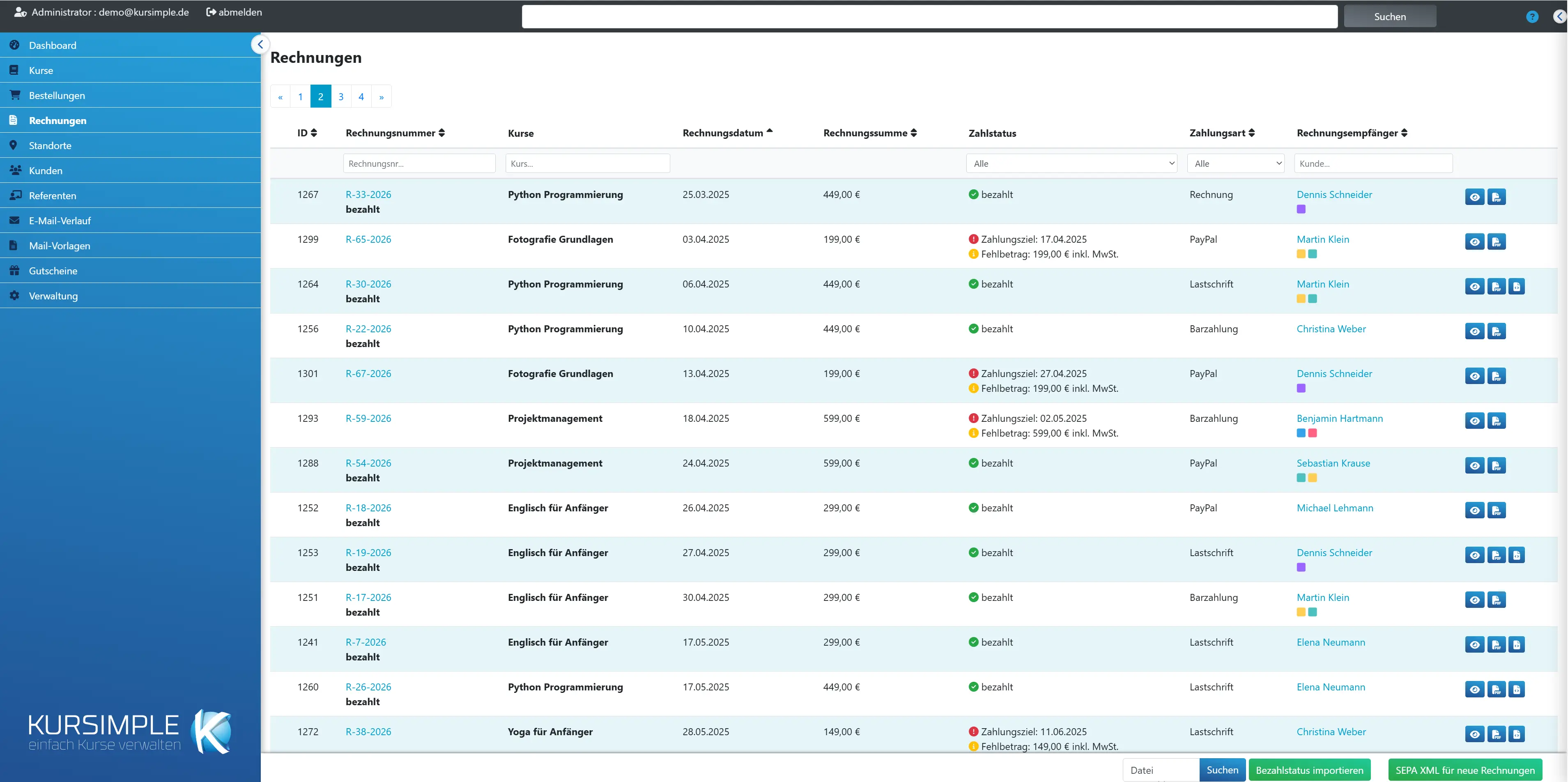
All invoices of your tenant: drafts, sent invoices, cancelled invoices and credit notes. Here you keep an overview of who has paid, and at the bottom you find the exports for bookkeeping and bank.
Invoices almost always arise from an order: in the order you tick the items and click “Create invoice”. The draft then appears here in the list and is completed via “Close and send invoice”.
Typical tasks on this page:
- Find open invoices: set the filter “Payment status” to “open”. Rows marked red are overdue – a reminder is due there (eye icon → “Add reminder”).
- Book a payment: a click on “open” in the “Payment status” column marks the invoice as fully paid after confirmation. You record partial payments in the invoice view.
- Collect direct debits: “SEPA XML for new invoices” at the very bottom creates the file for your online banking.
- Supply bookkeeping: the DATEV buttons at the bottom (visible only if enabled for your tenant).
Rows shown in grey are cancelled invoices or credit notes – they are only there for documentation. Sort by clicking the column heading, filter via the fields below.
Email sending
An envelope means: this invoice was sent by email. A click opens the sent email in the email history – so you see when and to which address it went.
If the icon is missing, the invoice has not been emailed yet: either it is still a draft, or it was only “closed” (without sending), for example for postal dispatch.
If a customer asks “I did not receive an invoice”, first check here whether and where it went, and then send it again in the invoice view.
ID
Internal number of the invoice. An arrow below it connects invoice and credit note: “← 123” on a cancelled invoice points to its credit note, “→ 123” on a credit note to the cancelled invoice.
For customers and bookkeeping the invoice number in the next column counts. The ID helps internally with finding things again, for example when a colleague says “invoice 4711”.
Invoice number
The number that appears on the PDF. A click opens the invoice. For cancelled invoices the number of the credit note is shown below, for credit notes that of the cancelled invoice.
The number is already assigned when the draft is created from your tenant's number sequence (you set prefix, running number and suffix under Administration → Application data). It no longer changes on closing.
Important for bookkeeping: if a draft is deleted, its number stays unused – a gap arises in the number sequence. Therefore only delete drafts if they were created by mistake, and note this for the tax adviser.
Credit notes (cancellation invoices) get their own number from the same number sequence.
Courses
What was invoiced: the item descriptions of the invoice, usually course titles with session, plus any material costs.
You see the texts as they appear on the invoice. For all details (participants, comments) open the associated order via the “Order” tab in the invoice view.
Invoice date
The date that appears on the invoice. It determines in which month the invoice ends up in bookkeeping and from when the payment term runs.
For drafts you can still change the date in the invoice view. After closing it is fixed – with a wrong date the only option is to cancel and create anew.
Invoice total
The gross amount of the invoice (including VAT, after deduction of vouchers). For credit notes the amount is negative.
If the amount differs from the order, probably only some of the items were invoiced (partial invoice). You see the remaining items in the order and invoice them there via “Create further invoice”.
Payment status
Shows whether money has been received. “open” is clickable: after confirmation the invoice is booked as fully paid (payment received with today's date). Red = payment term exceeded.
What you can see here:
- open – nothing received yet. A click marks it as paid; the system automatically creates a payment received for the open amount with today's date.
- Payment term: … in red – overdue. Open the invoice and create a reminder.
- Shortfall: … € – partly paid; this much is still missing.
- paid with a green tick – fully settled. If “Overpaid amount” appears below, the customer has overpaid and you should refund the rest.
- cancelled / credit note – no payment process needed any more.
Partial payment or a different payment date? Then do not click “open” but open the invoice and record the exact amount with the date from the bank statement under “Payment received”.
Original invoice number
Visible only for cancelled invoices: the number of the original invoice the credit note belongs to.
The column appears if you have chosen the option “cancelled” in the “Payment status” filter. A click on the number opens the original invoice.
Payment method
How the customer pays: invoice (bank transfer), direct debit (you collect), PayPal (already paid in the frontend), online payment via pmPayment (paid as soon as GovConnect confirms) or cash. Taken over from the order.
Direct debit invoices are those that belong in the SEPA file. You also recognise them by the code icon in the “Actions” column, with which you can download a single direct debit as XML.
The payment method cannot be changed here; it comes from the order and can only be changed there as long as the order is “On hold”.
Invoice recipient
To whom the invoice is addressed – the customer or a different recipient (e.g. employer). A click on the name opens the customer record, a click on the email the send dialog.
Coloured squares are tags of the customer; the name of the tag appears when you hover over it with the mouse.
With the send dialog you write to the recipient with this invoice as a reference – for example a payment reminder in your own words or a reply to a query. The email lands in the email history.
Actions
Eye = open invoice (payments, reminders, items). PDF icon = invoice or credit note as PDF. Code icon = SEPA file for this one direct debit only.
- View (eye): the working page of the invoice. Here you record payments, create reminders, send again or cancel.
- PDF: opens the document as the customer receives it – for printing or checking. For credit notes the credit note.
- SEPA XML (direct debit only): downloads the direct debit file for exactly this invoice, e.g. if a single invoice is to be collected subsequently. The invoice then counts as closed and exported. For the regular collection you use the collective button at the bottom.
Reset all filters
Clears all filter fields at once. Appears only if a filter is currently active. If you miss invoices, click here first.
A single filter can also be cleared via the X next to the respective field.
Filter by type
“Draft” shows only invoices not yet closed – those you still have to complete. “Invoice” shows only closed ones. “All” removes the filter.
Tip at the end of the day: set the filter to “Draft” and check whether invoices are still waiting to be closed and sent.
Filter by invoice number
Type the number from the bank statement or the customer enquiry – part of it is enough. The list filters as you type.
If the customer names an order number instead of an invoice number, it is better to search in the order list; there the “Invoice number” column shows the associated invoice.
Filter by course
Shows only invoices in which a course with this title was invoiced. Useful to see before a course cancellation which invoices have to be cancelled.
Part of the course title is enough.
Filter by payment status
“open” shows all unpaid invoices – your reminder list. “part. paid” and “overpaid” the special cases, “cancelled” and “credit note” the cancellation processes.
- open – no money received; you recognise overdue invoices by the red payment term.
- part. paid – a partial amount is still missing.
- paid – settled.
- overpaid – the customer transferred too much; check the refund.
- cancelled – invoices for which a credit note exists (additionally shows the column “Original invoice number”).
- credit note – only the cancellation invoices themselves.
Invoices for €0 are settled even without payment: they never appear under “open” but under “paid”, and are never reminded.
Filter by payment method
Shows only invoices of one payment method. “Direct debit” is handy to check before the SEPA export what will be collected.
“Cash” shows invoices that are collected on site – there you should record the payment received after the course so that they do not stay open.
Filter by customer
Searches the name of the invoice recipient (first and last name, company). Part of the name is enough.
Participant names are not searched – if you only know the child's name, go via the customer record.
export all invoices [Datev]
Downloads a CSV file with all invoices and credit notes of your tenant for bookkeeping – regardless of whether they have been exported before. For a complete reconciliation, not for regular operation.
The file “Rechnungsexport.csv” is prepared for import into DATEV (booking batch with tax keys). This export changes nothing about the invoices – they are not marked as exported.
The button exists only if the DATEV export is switched on for your installation. For ongoing operation you use “export new invoices”.
export new invoices [Datev]
Downloads only the invoices that have been added since the last export and remembers that they have been handed over. This is the button for the regular bookkeeping run, e.g. once a month.
Every invoice carries a marker “exported” or “not exported”. This export takes along all invoices not yet marked and sets the marker. At the next click only new invoices come along.
Lost the file? Then “export all invoices” helps, from which your tax adviser picks out the missing numbers.
Import payment status
Reads in a list with invoice numbers and status and sets the invoices to paid or open. The file needs the columns “rechnungsnummer” and “status” (values “bezahlt”/“beglichen” or “offen”).
This is how you prepare the file (e.g. in Excel, then save as CSV):
- First row: the column names rechnungsnummer and status (lowercase, further columns are ignored)
- One invoice per row; semicolon or tab as delimiter
- Status bezahlt or beglichen sets the invoice to paid, offen sets it to open
Choose the file via “Browse” and click “Import payment status”. Afterwards you see how many invoices were updated. Unknown invoice numbers are skipped, missing columns are reported as errors.
The import only sets the status – it does not create payments received with amount and date. For an exact payment history you record payments in the invoice view.
SEPA XML for new invoices
Creates the direct debit file for all direct debit invoices that have not yet been collected. You upload the file in your bank's online banking. Afterwards the invoices it contains count as closed and are not included in the next run.
Prerequisites: creditor ID, IBAN and BIC of your tenant in the application data; at the customer an IBAN and the consent to direct debit collection.
What happens on the click:
- All direct debit invoices in the state “Draft” or “Direct debit pending” are collected. If the IBAN is missing in the invoice, it is added from the customer record.
- Customers without an IBAN are skipped with a red message – these invoices are missing from the file. Add the IBAN and export them individually via the code icon in the list.
- For customers whose direct debit mandate is used for the first time, the direct debit is marked as a first direct debit and the mandate is saved as active.
- The file “SEPA-<Datum>.xml” is downloaded; the invoices change to “closed”.
Caution: Direct debit drafts are also taken along. Check beforehand with the filter “Type = Draft” and “Payment method = Direct debit” whether all drafts are really to be collected. After the export do not forget the payment received: the invoices remain “open” until you mark them as paid.
Invoice
Invoice
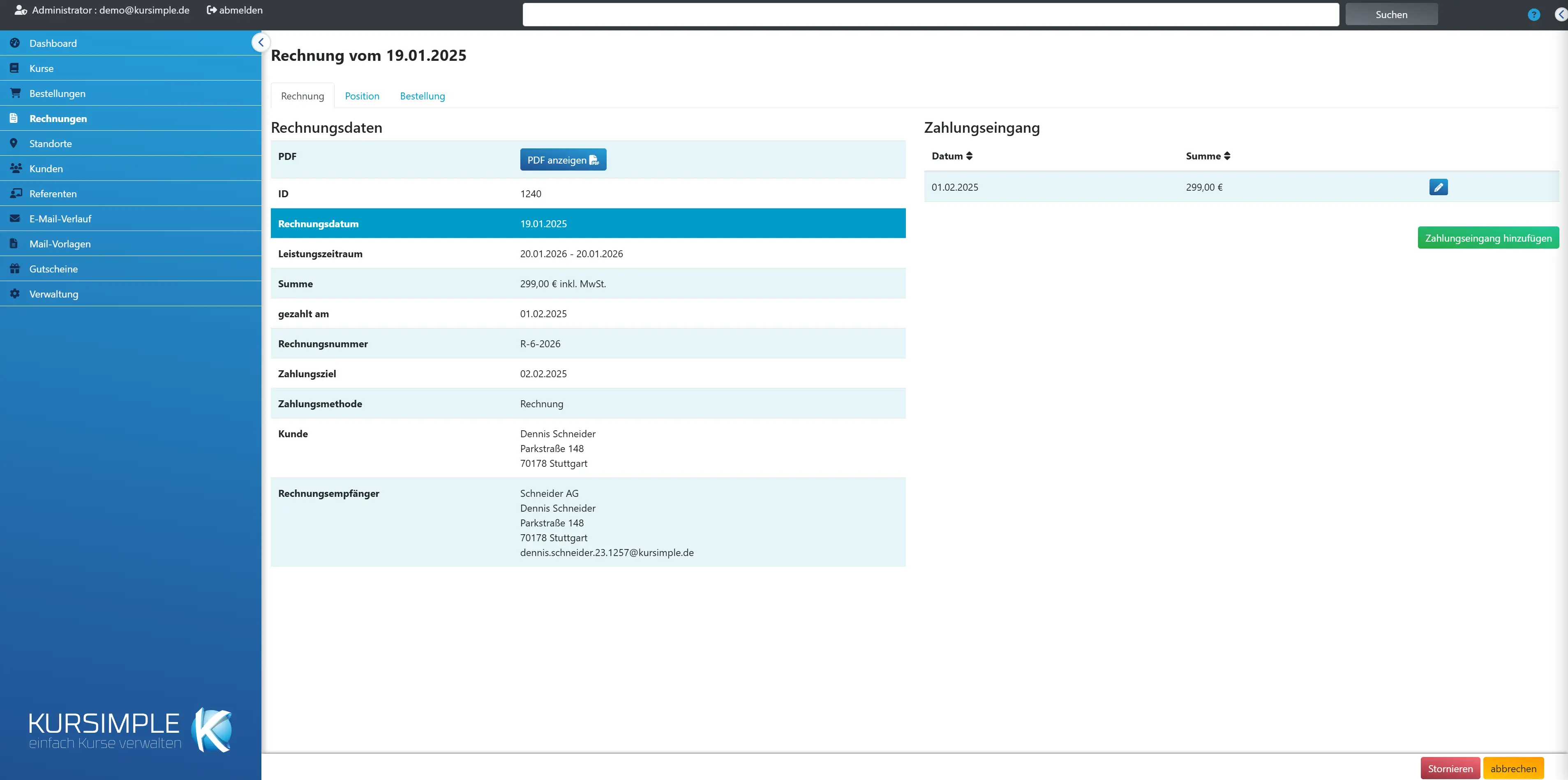
The working page of an invoice. For a draft (stated in the heading) you check recipient and items and then click “Close and send invoice”. For a finished invoice you record payments here, create reminders or cancel.
The page has three tabs: Invoice (header data, reminders, payments), Item (what is invoiced) and Order (where the invoice comes from).
Draft – how to finish the invoice:
- “Item” tab: check descriptions, prices and quantities, change if necessary and “save”.
- “Invoice” tab: check the invoice recipient; if there is a note about a changed address, click “Update invoice address”.
- Open “PDF” and look at the document once.
- “Close and send invoice” – the invoice goes by email to the recipient and is unchangeable afterwards.
Finished invoice: Nothing can be changed any more. In case of errors “Cancel” (creates a credit note) and create a new invoice from the order. You find payments received and reminders at the bottom in the “Invoice” tab.
Invoice tab
The main tab: invoice data with PDF, recipient, payment method and below it the tables “Reminders” and “Payment received”.
Here you take care of everything to do with money: record payments, write reminders, send the invoice again. For drafts you also choose the invoice recipient here and close the invoice.
Item tab
The invoiced items with quantity and total. For a draft you can still change description, text, price, quantity and tax rate – then “save” at the bottom.
After closing, the items are fixed. A click on a course title opens the course, a click on the session the course session.
Order tab
Shows the order from which this invoice arose: customer, date, order number. A click on the number opens the order.
You see participants, comments and the other items of the order only there. Invoices without an order show nothing here.
Invoice data
All details that appear on the PDF. Warning lines at the very top tell you if something is special: cancelled, credit note or overdue.
Before closing, read the table once from top to bottom: date, total, payment term, payment method, customer and invoice recipient. All of this reaches the customer that way.
Invoice cancelled
This invoice is invalid; a credit note exists for it, which you open via the red PDF icon. Nothing more needs to be done – you create a corrected invoice from the order.
Cancelled invoices are kept for documentation and are exported to bookkeeping together with the credit note. Payments received for this invoice you have to refund outside kursimple or offset against the new invoice.
Credit note
You are looking at a cancellation invoice (credit note). It wholly or partly cancels an invoice and is neither paid nor reminded. You open the PDF via the red icon.
A credit note has its own unique number from the invoice number sequence. On the PDF it appears as “Credit note no.”, plus the invoice it cancels.
When a participation is cancelled, it is created as a draft. With “Close and send credit note” the customer receives it by email (credit note PDF, subject and text from the settings under “Credit note email”). “Close credit note” in the order closes it without email.
Only what the invoice charged and no credit note has yet refunded is credited – a participation never gets into a credit note twice.
Invoice overdue
The payment term has expired and the invoice is not fully paid. Next step: “Add reminder” next to it on the right.
Before you remind: check the bank statement – maybe the money is already there and just not yet recorded as payment received. Then you record the payment and the note disappears.
The reminder creates its own PDF and can be sent by email together with the invoice.
Opens the invoice as the customer receives it. For drafts for checking before sending, for finished invoices for printing or sending again.
Sender, logo, footer and payment notes come from your tenant's application data (Administration → Application data). If something is wrong there, change it there – the PDF is generated anew every time it is opened.
ID
Internal number of the invoice, assigned by the system. Externally only the invoice number further below counts.
Useful when you talk internally about a case or want to find an invoice in the email history.
Invoice date
The date on the invoice. Determines the booking month and from when the payment term runs. Still changeable for drafts, fixed afterwards.
It is not the order date. If you want to create an invoice retroactively for an earlier month, agree this with your bookkeeping – backdated invoices are delicate.
Service period
From when to when the invoiced courses run. Determined from the sessions of the items and shown on the invoice for bookkeeping.
The row appears only if the items have course sessions. For free items without a session it is missing.
Total
The gross amount of the invoice including VAT – what the customer has to transfer. For credit notes the credited amount.
If part has already been paid, you see the missing remainder at the bottom in the “Payment received” table or in the invoice list as “Shortfall”.
paid on
The date of the last recorded payment received. Empty as long as no payment has been entered.
The date comes from the “Payment received” table. If you click “open” in the invoice list, today's date is entered.
Invoice number
The official number from your tenant's number sequence. It is assigned on creation and stays the same on closing.
You set prefix, counter and suffix of the number sequence under Administration → Application data. A number once assigned is never reused – not even if the draft is deleted.
Payment term
By when the customer should pay. Pre-filled with invoice date plus the payment period from the application data (default: 14 days). After that the invoice counts as overdue.
For drafts you can still adjust the date, for example if you have promised the customer a longer period. After closing it is fixed; you then document an instalment agreement in the comment of the reminder or in the customer's notes.
Payment method
How the customer pays (taken over from the order). For direct debit the IBAN from which the debit is collected is shown next to it – check it before the SEPA export.
- Invoice – the customer transfers; you wait for the payment received.
- Direct debit – you collect; after closing, the invoice ends up in the state “Direct debit pending” and goes into the next SEPA file.
- PayPal – was already paid in the frontend.
- Online payment (pmPayment) – the customer pays at GovConnect after booking; with the confirmation the payment is recorded automatically.
- Cash payment – collect on site and then record the payment received.
The payment method cannot be changed in the invoice. If needed: cancel the invoice, set the order to “On hold”, change the payment method there and create a new invoice.
Take over customer's IBAN
Appears only if the customer now has a different IBAN in their record than in this invoice. A click takes over the current IBAN after confirmation – do this before the SEPA export, otherwise the direct debit goes to the old account.
The invoice stores the IBAN as at the time of creation. Hover over the button with the mouse to see the current customer IBAN. If the customer has no IBAN stored at all, an error message appears.
Customer
The orderer. Via the pencil you open their customer record, via the email address the send dialog with this invoice as a reference.
The customer is not always the invoice recipient – see the row below. If the customer has meanwhile been deactivated, it says so here; the invoice remains valid anyway.
Invoice recipient
Name and address that are printed on the PDF. The invoice stores a copy – later address changes in the customer record do not change anything here by themselves.
For a draft a note appears above if the address in the record has meanwhile changed; with “Update invoice address” you take it over. Via the email address in this row you write to the recipient directly.
For a closed invoice the address is final. Wrong address? Cancel and create anew – no tax office accepts invoices with a subsequently changed address.
Available invoice recipients
Drafts only: choose to whom the invoice should go – the customer themselves or one of their stored invoice recipients (e.g. employer). Then “save” at the bottom right.
If the desired recipient is missing from the list, first create them in the customer record in the “Invoice recipients” tab and reload this page.
After saving, the “Invoice recipient” row shows the new address. If a note about a changed address appears instead, additionally click “Update invoice address”.
Update invoice address
Appears if the address in the customer record no longer matches the stored invoice address. A click copies the recipient's current address into this draft.
Without this click the invoice is sent with the old address. After updating you see the message “Invoice address was updated successfully” and the note disappears.
Emails
All emails sent for this invoice – invoice, reminders, notices. A click on the subject opens the email in the email history.
This way you can prove to a customer when the invoice went to which address. The row appears only once at least one email exists.
Close and send invoice
The last step for a draft: the PDF is generated and sent by email to the invoice recipient, the invoice is closed for good and the order is set to “done”. Check the PDF once beforehand.
What exactly happens:
- The invoice is sent as a PDF to the recipient's email address. Subject and text come from the invoice template in the application data.
- The email is saved in the email history (row “Emails”).
- The invoice changes to “closed” – for direct debit to “Direct debit pending” until it has been in a SEPA file.
- The associated order gets the status “done”.
If sending fails (red message, e.g. invalid email address), the invoice stays a draft. Correct the address at the customer or invoice recipient, update the invoice address and try again.
If the invoice is to go by post, use the “Close invoice” icon in the order instead – it closes without email.
Close and send credit note
Sends the credit note as a PDF by email to the customer and closes it. The credit note PDF goes out, not the invoice.
What exactly happens:
- The customer receives the credit note PDF (file “Gutschrift-Nummer.pdf”). Subject and text come from “Credit note email” in the settings; without your own text the default “Gutschrift {Rechnungs_Nummer}” applies.
- The email is saved in the email history.
- The credit note changes to “closed” – also for direct debit, nothing is collected. The order keeps its status, a cancelled one stays cancelled.
If the credit note is to go by post, use the “Close credit note” icon in the order – it closes without email.
Reminders
All reminders for this invoice. Per row: pencil = edit text, PDF = save reminder letter, envelope = send to the customer by email (together with the invoice).
The section appears only once a reminder exists. You create new reminders via “Add reminder” at the top in the note “Invoice overdue”.
Recommended procedure: first reminder as a friendly “Payment reminder”, after a further two weeks “1st reminder”, then “2nd reminder”. Each reminder stays saved here – so you and your colleagues see exactly how often the customer has already been written to.
Date
The reminder date that appears on the reminder letter. A click on the heading sorts.
Changeable via the pencil in the row.
Title
The heading of the reminder letter, e.g. “Payment reminder” or “2nd reminder”. Also appears in the subject of the email.
Choose the title so that the customer immediately recognises how serious it is.
Actions
Pencil = change title, date and text. PDF = download reminder letter, e.g. for postal dispatch. Envelope = send reminder and invoice as PDF by email to the customer.
When sending by email, the reminder template from the application data is used as the email text; reminder letter and invoice are attached as PDF. Afterwards you see the message “The reminder was successfully sent to the customer by email” and the email appears in the “Emails” row.
Add reminder
Opens the dialog for a new reminder with title, date and the reminder text (pre-filled from your reminder template). After saving you send it via the envelope in the reminder list.
Saving only creates the reminder – no email goes out yet. This way you can check and adjust the text in peace (pencil) before you send it.
Payment received
All payments recorded for this invoice. The sum of the rows determines the payment status: open, partly paid, paid or overpaid. Via the pencil you correct amount or date.
Enter payments as they appear on the bank statement – also partial amounts. As soon as the sum reaches the invoice total, the invoice counts as paid and the overdue note disappears.
The same applies to cash and direct debit payments: only with a recorded payment received is the invoice “paid” in the list.
Date
The day the money was received (according to the bank statement). Appears as “paid on” in the invoice data.
A click on the heading sorts the payments by date.
Total
The amount paid in this single payment. Several partial payments add up.
If the sum of all payments is higher than the invoice total, the invoice list shows “Overpaid amount” – then you should refund the rest to the customer.
Actions
Pencil = change amount or date of this payment, e.g. after a typo.
After saving, the payment status of the invoice is recalculated.
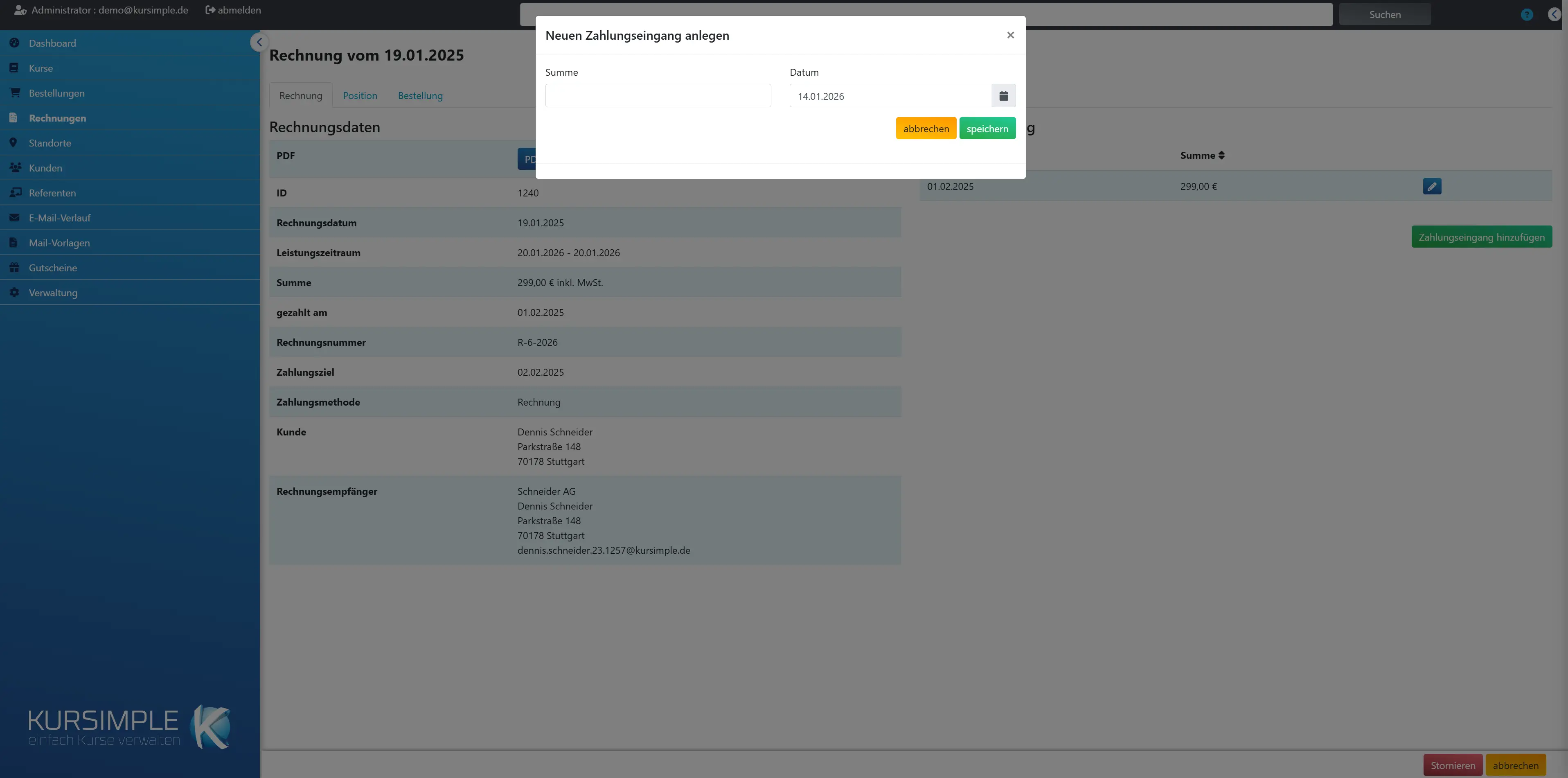
Add payment received
Records a payment with amount and date. The open remaining amount is pre-filled – for a partial payment you overwrite it. Not possible for cancelled invoices.
For the most common case “paid in full, booked today”, a click on “open” in the invoice list is also enough. You use this dialog if the amount differs or the payment date matters (e.g. for bookkeeping at the end of the month).
Items
The invoiced items. For a draft the fields are changeable – after every change “save” at the bottom right. After closing, display only.
You cannot add or remove items here. If a further item is to go on the invoice, delete the draft and create it anew in the order with the right selection.
Course
The description of the item, usually course title with session. A click on the title opens the course, a click on the session the course session.
A note “booked after course start” appears if the booking was only made after the first session – relevant for pro-rata prices.
Quantity
Number of invoiced places or units, taken over from the order item.
For drafts changeable in the “Quantity” field of the item.
Price total
Price times quantity including VAT – this is how it appears on the PDF.
The sum of all items gives the invoice total in the “Invoice” tab.
Item description
The text that appears on the invoice for this item. Pre-filled with the course title; you can word it more understandably for the customer.
Changeable for drafts only. Please no internal abbreviations – the customer reads this on their invoice.
Description
Additional text that appears smaller below the description – e.g. the session, the participant's name or “incl. textbook”.
Handy if an employer receives the invoice and should know who the course was for.
VAT
The VAT rate of the item. Shown on the PDF and passed on as a tax key in the DATEV export. If in doubt, ask bookkeeping.
The standard rate, the reduced rate and 0 % (tax-exempt, e.g. certain educational services) are available. You maintain the rates themselves in the application data.
Price incl. VAT
The gross price per unit. Change it if you grant the customer a discount – and mention the reason in the description.
The system calculates the net amounts and the tax for the PDF itself.
Quantity
Number of units. Item total = price × quantity.
Changes nothing about the order or occupied course places – only about this invoice.
Order
Customer, date and number of the order the invoice comes from. A click on the number opens the order – there you change participants or items, not in the invoice.
If something is wrong with the order and the invoice is already closed: cancel the invoice, set the order to “On hold”, correct, create a new invoice.
save
Saves your changes to the draft (invoice recipient and items). The invoice stays a draft – to finish it, then “Close and send invoice”.
After saving you see the message “Invoice saved”. Check the PDF afterwards before you close.
Cancel
Makes a closed invoice invalid and creates a credit note with its own number. The order remains – you then create a corrected invoice anew from the order.
After the confirmation prompt, the invoice is marked as “cancelled” and a credit note for the full amount is created. Both documents are kept and go to bookkeeping.
The items of the order count as not invoiced again – you can click “Create invoice” in the order straight away. Course places are not released in the process; if the customer cancels, cancel the order instead.
The customer receives no automatic email. If needed, send them the credit note (PDF) via the send dialog.
Delete
Permanently deletes this draft – only possible for drafts. The items of the order are then free again for a new invoice. Caution: the invoice number stays unused (gap in the number sequence).
Use Delete if the draft was created by mistake or with the wrong item selection. Closed invoices cannot be deleted, only cancelled.
If a credit note already exists for this invoice, deleting is blocked.
cancel
Back to the invoice list. For a draft, unsaved changes to recipient and items are lost.
Payments and reminders are not affected – they are already saved in their own dialog.
Payment received
Here you enter how much was paid when. Take over amount and date from the bank statement, save – done. The payment status of the invoice is recalculated automatically.
When creating, the still open amount is pre-filled. For a partial payment you enter the amount actually received; the invoice is then “partly paid” and shows the shortfall.
Total
The amount received in euros, with a comma for cents (e.g. 89,50). Pre-filled with the open remainder.
If the customer transferred more than owed, enter the real amount – the invoice is then marked as “overpaid” so that you do not forget the refund.
Date
The day of the payment received according to the bank statement. Pre-filled with today – for bookkeeping please enter the real date.
The date appears as “paid on” in the invoice data.
Reminder
Title, date and text of the reminder letter. The text is pre-filled from your reminder template (placeholders such as invoice number and amount are already replaced) – check, add to if needed, save.
Saving only creates the reminder. It is only sent via the envelope in the reminder list – then as a PDF together with the invoice.
You maintain the template for new reminders under Administration → Application data. If none is stored, the system uses a default text.
Title
The heading of the reminder letter and subject of the email, e.g. “Payment reminder”, “1st reminder” or “2nd reminder”.
Number the reminders – this way everyone sees at a glance how often the customer has already been written to.
Date
The reminder date on the letter. Pre-filled with today.
If you name a new payment deadline in the text, calculate it from this date.
Comment
The actual reminder text, as it is printed on the PDF. Pre-filled from your template – here you can add a new deadline, an instalment agreement or a personal sentence.
Write politely and specifically: invoice number, open amount, new deadline. The text is taken over one to one.
New invoice
New invoice
Create an invoice without the detour via an order. This form has no menu item and is meant for special cases – the normal way is: open order → tick items → “Create invoice”.
In the background the system nevertheless creates an order for the customer for this invoice so that invoice and customer record match. Course places are occupied as with an order; if a session is full, the participant ends up on the waiting list.
After saving, the invoice appears as a draft in the invoice list and is closed and sent there like any other.
Customer
Who the invoice is for. The customer is fixed because the form was opened from their customer record; their current address is taken over.
If the address is wrong, first correct the customer and then open the form again.
Payment method
How the customer pays – invoice (bank transfer) or PayPal.
Direct debit or cash payment are not available here. If you need a direct debit, create the invoice via an order.
Invoice date
The date on the invoice, pre-filled with today. Determines booking month and start of the payment term.
Still changeable until the invoice is closed.
Payment term
By when payment should be made. Pre-filled according to the payment period in the application data (default 14 days). After that the invoice counts as overdue.
For an agreed longer period simply adjust the date.
Order
Optional: the order or course session this item belongs to. The item is then linked to the order and treated there as invoiced.
For services without a course reference (e.g. an examination fee) you leave the field empty and fill in description, price and quantity yourself.
Item description
Required field: the text that appears on the invoice, e.g. “Examination fee module 2”.
Write so that the customer understands the item without asking.
Description
Optional addition that appears smaller below the description – period, participant's name or details of the service.
Internal notes do not belong here; the customer reads the text.
Price incl. VAT
The gross price per unit in euros.
The system calculates net and tax for the PDF.
Quantity
Number of units. Item total = price × quantity.
For course items the number of places.
VAT
The tax rate of the item: standard, reduced or 0 %. If in doubt, ask bookkeeping.
The rate appears on the PDF and in the DATEV export.
save
Creates the invoice as a draft and leads back to the customer's invoice list. Afterwards: open the draft, check, “Close and send invoice”.
If a chosen course session is full, you receive a message; the participant is recorded as a reservation and the item is not charged.
cancel
Discards all entries. Neither an invoice nor an order is created.
You return to the customer record.
Rather see it than read about it?
In 30 minutes we will show you Kursimple with your own course programme. Or set up your own test system in 30 seconds – both free and without obligation.
Questions? +49 5931 990 99 10 · Mon–Thu 8:30–17:30, Fri 8:00–14:00 (CET)