
Instructors
The instructor list and creating and editing instructors. These texts sit right next to the fields inside Kursimple – here they are to read through.
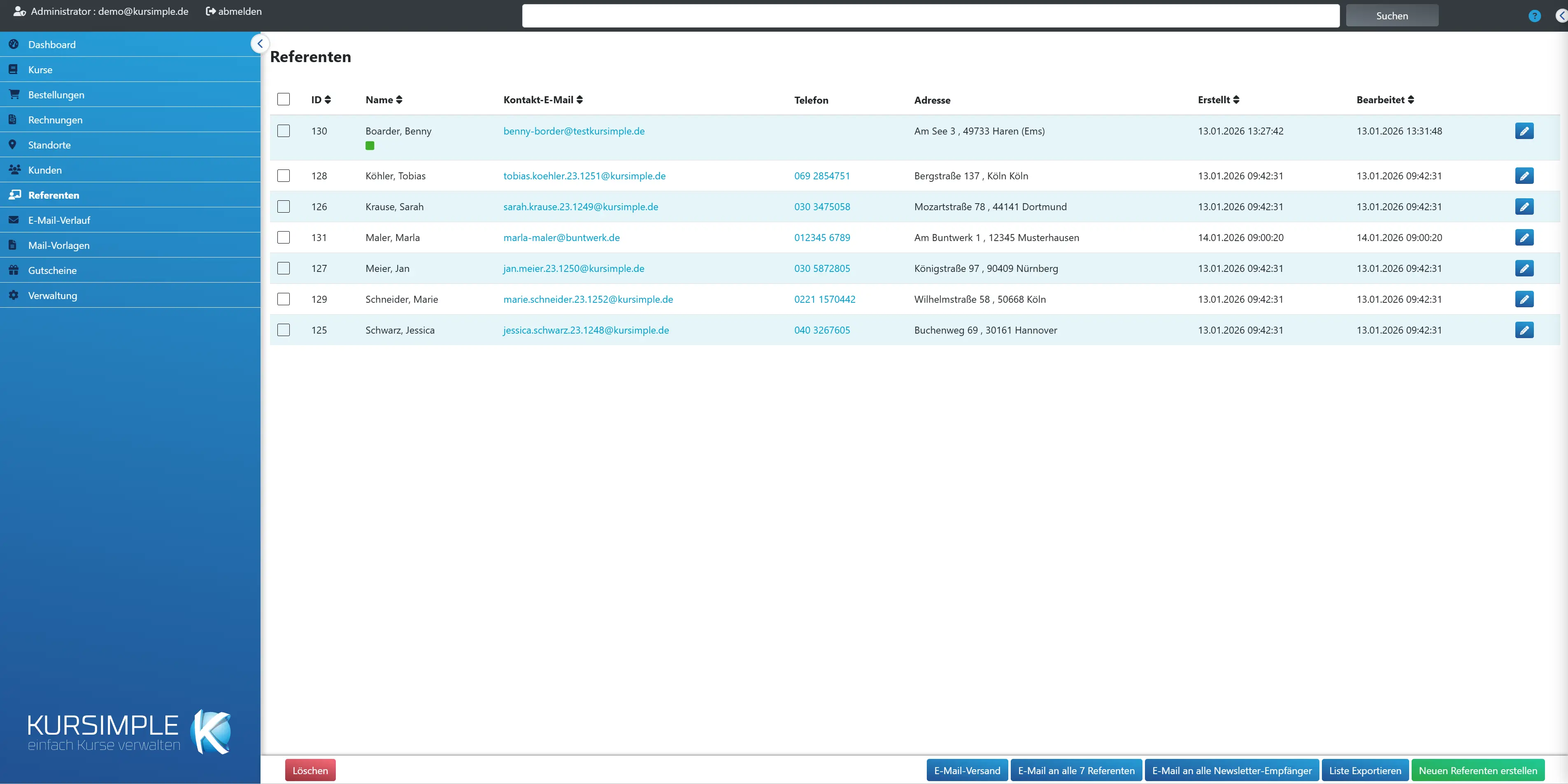
Selection
Selection
Checkbox to mark for email sending, export or deletion. The checkbox in the header row selects all speakers on the page.
For all speakers at once there is “Email to all … speakers” at the bottom.
ID
Internal number of the speaker. The icons next to it: envelope = newsletter allowed, prohibition sign = inactive, warning triangle = person record missing.
If the person record is missing, the speaker cannot be contacted and cannot be shown in the portal – open the speaker via the pencil and enter name/contact.
Name
Name of the speaker with profile picture and tags. A click on the pencil in the row opens editing. Yellow badges show the provider, if your tenant works with providers.
Sortable via the heading. The profile picture comes from the speaker's “Additional info” tab.
Contact email
Email address of the speaker – also their login name if they have a login. A click opens the send dialog.
With the send dialog you send e.g. participant lists or session changes directly to the speaker.
Phone
Phone number of the speaker as a call link – for short-notice arrangements on the day of the course.
Change it via the pencil in the row.
Address
Postal address of the speaker – for fee statements and mail.
Filterable via the field below (street, postcode or city).
Created
When the speaker was created.
Sortable via the heading.
Edited
When the speaker data was last changed.
Sortable via the heading.
Reset all filters
Clears all filter fields at once. Appears only when a filter is active.
You clear single filters with the X next to the field.
Filter by name
Searches first and last name – part of a name is enough.
Works as you type.
Filter by email
Searches the contact email – part of it is enough.
Works as you type.
Filter by phone
Searches phone and mobile number. Enter a sequence of digits.
Part of the number is enough.
Filter by address
Searches street, postcode and city – e.g. all speakers from one town.
Part of it is enough.
Delete
Permanently deletes the marked speakers after confirmation – but only if they are not assigned to any course session; otherwise a message and a window with the affected sessions appear. If the speaker is also a customer, the customer record is kept.
In the window “Speaker in sessions” you open each session in a new tab. Or you choose “… delete from all sessions” or another speaker under “… replace with this speaker” – on saving, the sessions are changed accordingly and the speaker is then deleted. With “cancel” everything stays as it is.
For speakers who have led sessions, deactivating is the right way: open the speaker and click “delete” at the bottom – this only deactivates; past sessions keep their instructor.
Export list
Downloads name, address and contact details of the ticked speakers as a file – e.g. for fee statements or mail merges.
Tick speakers first. The file can be opened in Excel.
Create new speaker
Creates a speaker: master data, email as login name, optionally bank details, profile picture and description texts for the portal. Then assign them in the course session under “Speakers”.
The speaker automatically gets a login with speaker rights. They set their password themselves via “Forgot password” on the login page – let them know. The email address must not yet be used by another user.
Edit an instructor
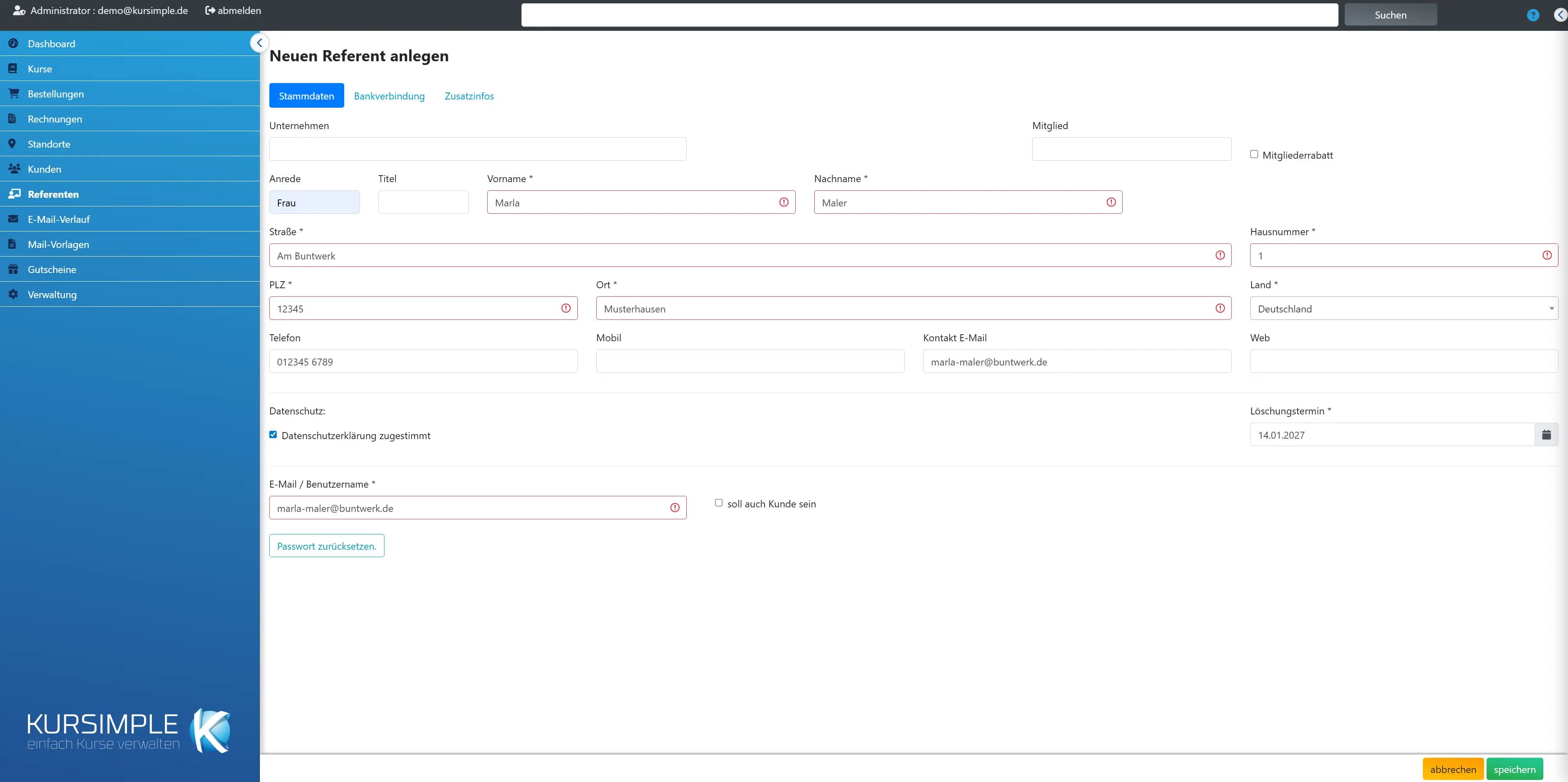
Company
Company or organization the instructor works for – e.g. if you pay fees to a company. Optional.
Does not appear in the booking portal; there, name, image and descriptions from the “Additional Info” tab count.
Note
Free field (formerly “Member”), e.g. club – only relevant if the instructor is to use member vouchers.
Leave empty for pure course leaders.
Allow member vouchers
Tick so that the instructor (if they are also a customer) may redeem vouchers that apply only to members.
Only works together with an entry in the “Member” field.
Salutation
Mr, Ms or Diverse – for letters and the display in the portal.
Optional.
Title
Academic title (Dr., Prof.), appears before the name in the portal.
Optional.
First name
Required field. This is how the instructor appears in the portal, in course lists and on certificates.
Please enter the full first name, no abbreviations.
Last name
Required field. The instructor list is sorted by last name.
If a name changes, simply change it here; old sessions show the new name.
Date of birth
Only needed if your tenant requires it for fee or funding evidence. The asterisk shows whether it is required.
Does not appear in the portal.
Street
Street of the address – for fee statements, contracts and mail.
Enter the house number in the field next to it.
House number
House number, with a suffix if needed.
Optional unless there is an asterisk.
Postcode
Postcode of the address.
Optional unless there is an asterisk.
City
Place of residence of the instructor.
Optional unless there is an asterisk.
Country
Country of the address; selection according to Administration → Countries.
Important for international transfers.
Phone
Landline number for queries – appears in the instructor list as a call link.
Optional.
Mobile
Mobile number for short-notice arrangements on the day of the course (room change, sick note).
Optional, but recommended.
Contact email
The address to which you send the instructor participant lists, session changes and bulk emails. Usually the same as the login name further down.
Update both fields when the address changes.
Web
The instructor’s homepage – can be linked in the portal. Optional.
Enter it with “https://”.
Privacy policy accepted
Tick if the instructor has accepted the privacy policy – a prerequisite for writing to them by bulk email.
The consent is noted with the date in the history of the person record.
Deletion date
Date from which the record is due for GDPR deletion. Prefilled automatically when created according to the retention period – extend it as long as the instructor works for you.
The date does not delete anything immediately; it marks the record for data cleanup.
Email / username
Required field: the instructor’s login name. The instructor sets their password via “Reset password” or “Forgot password” on the login page. If the address already has a Kursimple account (e.g. instructor at another provider), it is taken over.
With the login, the instructor sees their sessions, participant lists and attendance under “My Courses” – nothing more.
A login applies to all providers: if the address is already known to Kursimple, you still create it as usual. The instructor gets their own record with you, is an instructor only with you and logs in with their existing password; instead of the activation email they receive a notice. You do not see data from the other provider. If you already have a record with this address (e.g. as a customer), tick “Instructor” there.
You can only change the login email as long as the instructor is not with any other provider – otherwise they change it themselves in their profile. Every change goes to the login server; if that fails, the old address remains.
Instructor without a login (e.g. created earlier without an email): when editing, the field is optional. Saved empty, they remain without a login. If you enter an address, they get a login as an instructor and an email to activate it – or an existing Kursimple account is taken over. If you already have a record with this address, the instructor remains unchanged and you get a notice.
A note next to the field shows whether the instructor has confirmed their email.
Also customer
Tick if the instructor should also be a customer – e.g. because they book courses themselves. They then also appear in the customer list; orders run via the same record.
When editing, the checkbox is called “is also customer”; once set, the link remains. Below it, “Switch to customer” leads directly to the customer record of the same entry.
IBAN
The instructor’s account number for fee transfers, without spaces. Optional; not used for direct debits.
Only enter it if you want to settle fees from within Kursimple or keep the data centrally.
BIC
Bank identifier for the IBAN; usually optional for German accounts.
Found in the instructor’s online banking.
Bank
Name of the bank – to check the bank details.
Optional.
Portrait
The instructor’s profile picture for the booking portal and the instructor list (JPG or PNG). A friendly photo noticeably increases customers’ trust.
When uploading, you crop the image to fit. Mind the image rights – ask the instructor whether the photo may be published.
More images
Additional images for the gallery in the instructor profile, e.g. work samples or photos from courses. Optional.
Change the order by dragging; the first image appears first.
Descriptions
Text sections for the instructor profile in the portal – CV, qualifications, focus areas. Each section has a title, short description and text; several sections can be sorted.
Write from the customer’s perspective: what makes this person the right course leader? Two or three short sections are enough.
cancel
Discards unsaved changes and returns to the instructor list.
Images already uploaded are only kept with “save”.
save
Saves all tabs (master data, bank details, additional info). Afterwards “Instructor saved” or “Instructor created” appears, and the instructor is available for selection in course sessions.
Required fields are outlined in red as long as they are empty. With a duplicate email, saving is rejected.
Title
Heading of this profile section, e.g. “Education” or “Focus areas”.
Keep it short; sections can be sorted by dragging.
Short description
One or two sentences as a teaser – appear in lists and tiles before the customer opens the profile.
E.g. “Certified yoga teacher with 15 years of teaching experience”.
Description
The full text of the section for the profile page. Formatting via the editor toolbar.
Paragraphs and lists make the text readable.
Rather see it than read about it?
In 30 minutes we will show you Kursimple with your own course programme. Or set up your own test system in 30 seconds – both free and without obligation.
Questions? +49 5931 990 99 10 · Mon–Thu 8:30–17:30, Fri 8:00–14:00 (CET)