
Dashboard
The start page of the administration: figures for the last seven days, the next courses and current orders. These texts sit right next to the fields inside Kursimple – here they are to read through.
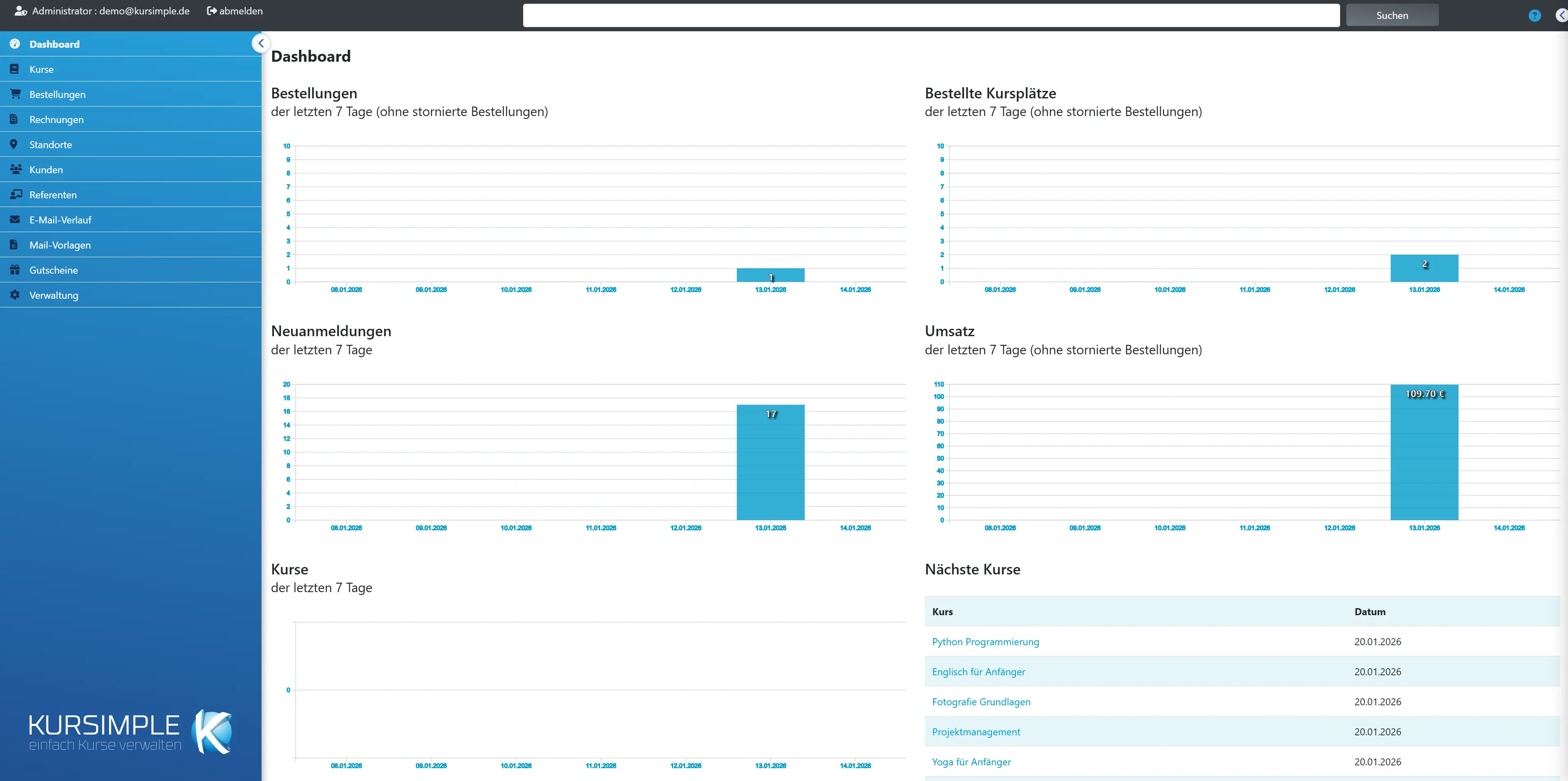
Orders of the last 7 days
Orders of the last 7 days
How many orders came in on each of the last seven days – whether via the portal, the administration or an interface. One bar per day.
A sudden rise shows a successful campaign; a drop after a newsletter can point to a problem in the portal. Cancelled orders do not count.
Booked course places of the last 7 days
How many participant places were booked per day. An order with three participants counts as three here – so you can see whether a few large or many small bookings came in.
Compare with “Orders”: if the places are clearly higher than the orders, families or companies book several people at once. Without cancelled orders.
New registrations of the last 7 days
Newly created customer accounts per day – registrations in the portal and customers created in the administration. Participants without their own account (e.g. children) do not count.
A measure of whether you are winning new customers or mostly existing customers are booking.
Revenue of the last 7 days
Order value per day, gross (incl. VAT, after vouchers), without cancelled orders. The order date is what counts – not whether an invoice or payment already exists.
For invoice and payment revenue by month, use Administration → Statistics.
Courses of the last 7 days
On which days new courses were created – a glance at how actively the programme is maintained.
Copied courses count as newly created.
Next Courses
The course sessions that begin next. Clicking the title opens the course – check the participant list, room and instructor there before it starts.
If a course that starts soon is missing, it probably has no published session or is archived – see the course list.
Current Orders
How many orders are currently “On hold” (new, unprocessed), “paid” or “In progress”. Clicking the number opens the order list with exactly this filter – the quickest way to the work.
Goal at the end of the day: bring “On hold” down to zero – each of these orders is waiting for review, confirmation and invoice.
Course
Title of the session. Clicking opens the course data with the tabs Sessions, Participants and Attendance.
In the “Participants” tab you print the list for the course room.
Date
Start of the session – the list is sorted chronologically, the next session is at the top.
Times and course days are shown in the session itself.
Dashboard for customers
Dashboard
Your start page as a customer. Via the menu you reach “My Profile” (address, bank details, password), “My Participants” (e.g. your children), “My Orders” and “My History”.
You do not book courses here but in the provider’s booking portal. Changes to your data affect future orders and invoices.
Dashboard for instructors
Dashboard
Your start page as an instructor. Via the menu you reach “my courses” with participant lists and attendance, the locations calendar and your profile.
You only see courses whose sessions you are assigned to as an instructor. If a course is missing, contact the administration – they will add you in the session under “Instructors”.
Rather see it than read about it?
In 30 minutes we will show you Kursimple with your own course programme. Or set up your own test system in 30 seconds – both free and without obligation.
Questions? +49 5931 990 99 10 · Mon–Thu 8:30–17:30, Fri 8:00–14:00 (CET)